Link tables: lookups, rollups and counts
A base holds several tables, and a link field relates their records: a deal names its account, the account lists its deals. Lookups, rollups and counts then read through the link, so an account can show the value of its pipeline without anyone typing it. This page builds a small sales CRM with Accounts, Contacts and Deals, one step at a time.
SvGrid Base is part of the Suite edition of
@svgrid/enterprise. Without a key it runs with a watermark.
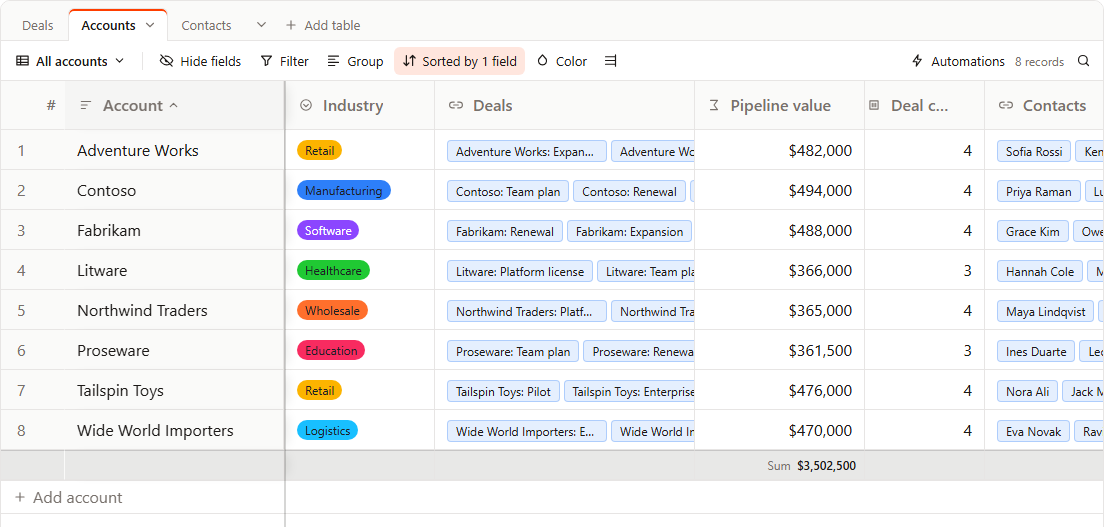
The demo above is the finished CRM. Step 1 is a complete page; the later steps add a table and fields to it.
1. Two tables and a link
Give SvBase a list of tables instead of data and columns. Each table
has an id, its records, its fields and its views. A link field names the
table it points at in fieldProps.table, and the field there that links back
in fieldProps.inverse.
<script lang="ts">
  import { SvBase, enableBase, type BaseTable } from '@svgrid/enterprise/base'

  enableBase()

  const STAGES = [
    { value: 'Lead', color: '#94a3b8' },
    { value: 'Qualified', color: '#18bfff' },
    { value: 'Proposal', color: '#2d7ff9' },
    { value: 'Won', color: '#20c933' },
    { value: 'Lost', color: '#f82b60' },
  ]
  const INDUSTRIES = [
    { value: 'Wholesale', color: '#ff6f2c' },
    { value: 'Manufacturing', color: '#2d7ff9' },
    { value: 'Healthcare', color: '#20c933' },
  ]

  const deals = [
    { id: 'd1', deal: 'Northwind: Platform license', account: ['a1'], stage: 'Proposal', value: 48000 },
    { id: 'd2', deal: 'Contoso: Pilot', account: ['a2'], stage: 'Qualified', value: 12000 },
    { id: 'd3', deal: 'Northwind: Renewal', account: ['a1'], stage: 'Won', value: 30000 },
  ]
  const accounts = [
    { id: 'a1', name: 'Northwind Traders', industry: 'Wholesale', deals: ['d1', 'd3'] },
    { id: 'a2', name: 'Contoso', industry: 'Manufacturing', deals: ['d2'] },
    { id: 'a3', name: 'Litware', industry: 'Healthcare', deals: [] },
  ]

  let tables = $state.raw<BaseTable[]>([
    {
      id: 'deals',
      name: 'Deals',
      primaryField: 'deal',
      data: deals,
      columns: [
        { field: 'deal', header: 'Deal', width: 260, fieldType: 'text' },
        { field: 'account', header: 'Account', width: 180, fieldType: 'link', fieldProps: { table: 'accounts', multiple: false, inverse: 'deals' } },
        { field: 'stage', header: 'Stage', fieldType: 'singleSelect', fieldProps: { options: STAGES } },
        { field: 'value', header: 'Value', fieldType: 'number', fieldProps: { format: 'currency', symbol: '$', precision: 0 } },
      ],
      views: [{ id: 'all', name: 'All deals', type: 'grid' }],
    },
    {
      id: 'accounts',
      name: 'Accounts',
      primaryField: 'name',
      data: accounts,
      columns: [
        { field: 'name', header: 'Account', width: 220, fieldType: 'text' },
        { field: 'industry', header: 'Industry', fieldType: 'singleSelect', fieldProps: { options: INDUSTRIES } },
        { field: 'deals', header: 'Deals', width: 260, fieldType: 'link', fieldProps: { table: 'deals', multiple: true, inverse: 'account' } },
      ],
      views: [{ id: 'all', name: 'All accounts', type: 'grid' }],
    },
  ])

  function save(next: BaseTable[]) {
    // Every change to records, fields, views or tables lands here.
    console.log(next)
  }
</script>

<SvBase bind:tables editable sortable expandRows columnAdder fieldMenu
  containerHeight={600} onTablesChange={save} />
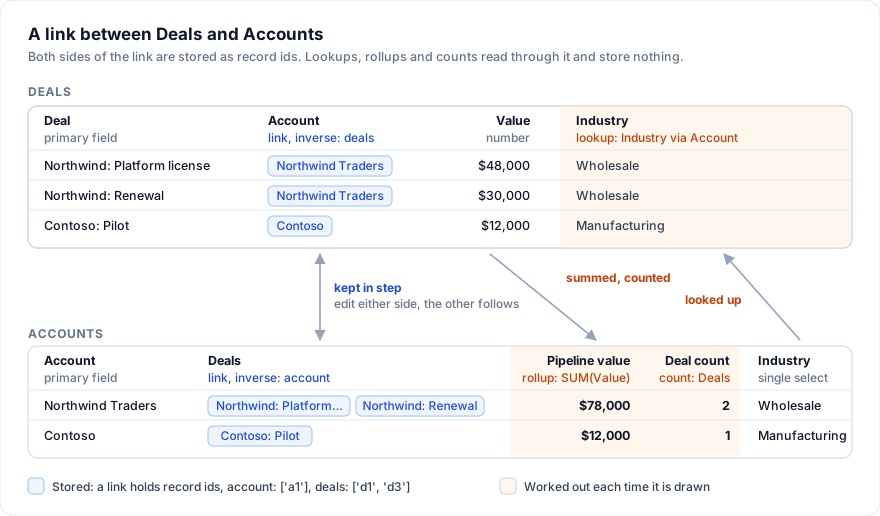
On screen there are two tabs, Deals and Accounts. The Account column shows one chip per linked record, with the account's name (its primary field). On the Accounts tab, Northwind Traders shows two chips in Deals.
What the link needs:
- Record ids. A link stores ids, so every record needs an
id(or the table needs agetRowId). - Both sides declared.
account.inversenames thedealsfield of Accounts, anddeals.inversenamesaccount. Theinversevalue is the other field'sid, or itsfieldwhen it has noid. - Both sides agree in the data you load. The base keeps the two in step
from the first change on, but it does not rewrite loaded data, so
accounts[0].dealshas to listd1andd3because those deals namea1. A mismatch is reported in the console when SvBase mounts (see Pitfalls).
multiple: false lets a deal pick one account. Leave it out and the field
links many records; that is the type's default.
2. Pick linked records
Select an Account cell and press Enter, or double-click it. A dialog titled "Link to Accounts" lists the accounts by name under a "Search Accounts" box. Click a row to tick it; in a single link a click on another row moves the tick, and a click on the ticked row clears it. The footer counts what is ticked ("1 linked"). Done writes the ids, Cancel or Escape leaves the cell as it was. Typing on a selected link cell does not open the dialog.
Search matches the primary field and the linked table's text fields (text, long text, email, URL, phone and the selects), anywhere in the value. A record found by another field shows where, for example "Email: [email protected]". The list shows the first 200 matches; when more match, a line under it says how many ("Showing 200 of 1,240. Type to narrow."). When no account is named exactly what you typed, the list ends with + Create "Initech": it adds an account called Initech to the Accounts table, with a new id, and ticks it. The account is added at once; Cancel leaves the link as it was but does not take the account back.
Copy and paste work on names. Ctrl+C on a link cell copies "Northwind
Traders", not a1. Pasting text into a link cell splits it at commas and
links each part that matches a record's name or id, ignoring case; parts that
match nothing are dropped, and a single link keeps the first match.
A name with a comma or a double quote is copied in quotes, CSV style:
"Acme, Inc.", Contoso, with an inner quote doubled ("The ""Big"" Shop").
The paste reads a quoted part as one name, so the copy pastes back to the
same records. A user field with several people copies and pastes its names
the same way.
Pick Litware for "Contoso: Pilot", press Done, and switch to Accounts: Contoso no longer lists the pilot and Litware does. The base rewrites the other side after every link edit, from either side. Link a deal from an account's Deals cell and the deal's Account cell changes; because a deal has one account, the account that listed it before lets go of it. Records deleted on one side drop out of the links on the other. A record added with "+ Add row", a form or a group's "+" is linked on both sides as soon as it exists.
Automations hear these changes too: linking a deal from Accounts counts as a change to the deal's Account field. See Automations.
3. Open and preview a linked record
Rest the pointer on a chip for a moment and a card opens under it: the record's name, its table, and the first four of its other fields that have a value, written as their cells write them. Empty fields are skipped and do not count toward the four. Move onto the card to read it; it closes when the pointer leaves. Touch input skips the preview.
Click a chip to open the record in a dialog. It shows every field of the linked record with the field's icon and name, drawn the way its cells draw them: a select as its pill, a link as chips. The record is read here, not edited. A chip inside it opens that record over this one, so you can walk from a deal to its account to the account's other deals.
For a table of the same base the dialog has "Open in Accounts" next to Close. It closes every open linked record, switches to the Accounts tab and expands the record there, where it can be edited. If the record was deleted in the meantime, the dialog says "This record is not in its table any more."
4. Add a third table
Contacts link to an account and to their deals. Add the table and one link field on each side of each pair.
const contacts = [
  { id: 'c1', name: 'Maya Lindqvist', title: 'Head of Operations', email: '[email protected]', account: ['a1'], deals: ['d1'] },
  { id: 'c2', name: 'Priya Raman', title: 'CFO', email: '[email protected]', account: ['a2'], deals: ['d2'] },
]

const contactsTable: BaseTable = {
  id: 'contacts',
  name: 'Contacts',
  primaryField: 'name',
  data: contacts,
  columns: [
    { field: 'name', header: 'Name', width: 190, fieldType: 'text' },
    { field: 'title', header: 'Title', fieldType: 'text' },
    { field: 'email', header: 'Email', width: 240, fieldType: 'email' },
    { field: 'account', header: 'Account', fieldType: 'link', fieldProps: { table: 'accounts', multiple: false, inverse: 'contacts' } },
    { field: 'deals', header: 'Deals', fieldType: 'link', fieldProps: { table: 'deals', multiple: true, inverse: 'contact' } },
  ],
}
Then the new fields in the other two tables, each naming its partner:
// In Deals' columns, with contact: ['c1'] on d1 and ['c2'] on d2
const contact = { field: 'contact', header: 'Contact', fieldType: 'link', fieldProps: { table: 'contacts', multiple: false, inverse: 'deals' } }
// In Accounts' columns, with contacts: ['c1'] on a1 and ['c2'] on a2
const accountContacts = { field: 'contacts', header: 'Contacts', fieldType: 'link', fieldProps: { table: 'contacts', multiple: true, inverse: 'account' } }
Two fields in different tables can share a name (Deals and Contacts both
have account); inverse names a field of the table the link points at.
You can build the same links without code. On the Contacts tab press "+" at
the end of the header, pick "Link to records" and choose Accounts under
Table. Accounts gets a field back at once, a link to many named after the
table it comes from ("Contacts", or "Contacts 2" when that name is taken),
and both fields name each other in inverse.
5. Show a field of the linked record: lookups
A lookup shows a field of the records a link field points at. On Deals, show the account's industry and the contact's email:
const accountIndustry = { field: 'accountIndustry', header: 'Industry', fieldType: 'lookup', fieldProps: { linkField: 'account', field: 'industry' } }
const contactEmail = { field: 'contactEmail', header: 'Contact email', width: 240, fieldType: 'lookup', fieldProps: { linkField: 'contact', field: 'email' } }
linkField is the link field of this table; field is a field of the linked
table. The lookup's value is a list, one entry per linked record, and the
cell writes it as text joined with commas, each value the way its own field
writes it: an amount with its symbol, a date in its format. "Manufacturing"
shows as text, not as the colored pill, and the email is not a mailto link.
A lookup is read-only and is never stored in the records. When the linked field is itself computed (a formula, a rollup, another lookup), the lookup works it out. In the field editor, pick the link under "Link field" and the field under "Field in the linked table".
6. Sum and count the linked records: rollups and counts
A rollup reduces one field over the linked records to a single value. A count says how many records a link points at. On Accounts:
const pipeline = { field: 'pipeline', header: 'Pipeline value', width: 160, fieldType: 'rollup', fieldProps: { linkField: 'deals', field: 'value', aggregation: 'SUM' } }
const largest = { field: 'largest', header: 'Largest deal', fieldType: 'rollup', fieldProps: { linkField: 'deals', field: 'value', aggregation: 'MAX' } }
const stages = { field: 'stages', header: 'Stages', width: 200, fieldType: 'rollup', fieldProps: { linkField: 'deals', field: 'stage', aggregation: 'ARRAYUNIQUE' } }
const dealCount = { field: 'dealCount', header: 'Deal count', fieldType: 'count', fieldProps: { linkField: 'deals' } }
Northwind Traders shows "$78,000", "$48,000", "Proposal, Won" and 2. Edit a deal's value on the Deals tab and the account's numbers follow.
aggregation |
Result |
|---|---|
SUM |
The total; values that are not numbers count as 0. The default |
AVERAGE, MIN, MAX |
Over the values that read as numbers; empty when there are none |
COUNT |
How many values are numbers |
COUNTA |
How many values are not empty |
COUNTALL |
How many linked records, empty values included |
ARRAYJOIN |
The non-empty values as text, joined with ", " |
ARRAYUNIQUE |
The same, each value once |
CONCATENATE |
Every value as text, joined with nothing between |
AND, OR |
Whether every value, or any value, is truthy |
A SUM, AVERAGE, MIN or MAX writes its result the way the linked field
writes its values, so a sum of dollar amounts shows "$78,000". Set
precision (0 to 8) on the rollup and it writes a plain number with that many
decimals instead. A rollup with one of these four or with COUNT, COUNTA
or COUNTALL is a number column: it right-aligns, and its footer offers Sum,
Average and the other number summaries (step 7).
A count field takes only linkField and is the number of linked records
that exist. That differs from a COUNT rollup, which counts the linked
records whose field holds a number.
Rollups, lookups and counts are read-only. The field types
table lists their fieldProps with
every other type's.
7. Formulas and footers over linked values
A formula can name a rollup or a count like any other field, by its header in braces. The formula works the computed field out when it reads it. On Accounts, the average deal size:
const avgDeal = {
  field: 'avgDeal',
  header: 'Average deal',
  fieldType: 'formula',
  fieldProps: { formula: 'IF({Deal count} > 0, {Pipeline value} / {Deal count}, 0)', result: 'currency', symbol: '$', precision: 0 },
}
The other direction works too: a rollup can add up a formula of the linked table. Give Deals a probability and a weighted value, then sum the weighted value per account:
// In Deals' columns, with probability: 0.5 on d1, 0.25 on d2, 1 on d3
const probability = { field: 'probability', header: 'Probability', fieldType: 'number', fieldProps: { format: 'percent', precision: 0 } }
const weighted = { field: 'weighted', header: 'Weighted', fieldType: 'formula', fieldProps: { formula: '{Value} * {Probability}', result: 'currency', symbol: '$', precision: 0 } }

// In Accounts' columns
const forecast = { field: 'forecast', header: 'Forecast', fieldType: 'rollup', fieldProps: { linkField: 'deals', field: 'weighted', aggregation: 'SUM' } }
Northwind's forecast is $54,000: $24,000 from the proposal and $30,000 from
the renewal. The OKR base does the same with an AVERAGE of each key
result's progress formula:
Open the live example: OKRs (Base)
With the summary prop on SvBase, every field gets a footer cell. Click
the Pipeline value footer and pick Sum, or set the choice in
fieldProps.summary: the footer adds up the rollup's values over the shown
records and writes the total the way the rollup writes it ("Sum $90,000").
A count's footer offers the same choices.
const pipelineWithTotal = { field: 'pipeline', header: 'Pipeline value', fieldType: 'rollup', fieldProps: { linkField: 'deals', field: 'value', aggregation: 'SUM', summary: 'sum' } }
Summaries at the bottom lists every summary.
8. Filter and group by a link
The view bar's Filter compares a link by the linked records' names: contains,
does not contain, is, is not, is empty and is not empty. "Account is
Contoso" keeps the deals linked to Contoso. Counts filter as numbers, and so
do rollups that are numbers (SUM, AVERAGE, MIN, MAX, COUNT,
COUNTA, COUNTALL). An ARRAYJOIN, ARRAYUNIQUE or CONCATENATE rollup
filters as text, an AND or OR rollup as a checkbox (is checked or
unchecked). Lookups filter as text.
Grouping by a link field puts the records linked to the same records in one group. The group's header shows the link as chips, the record count and the summaries the fields picked. Its "+" adds a deal already linked to that account, and the account lists the new deal at once.
Both can be saved in a view:
import type { FieldView } from '@svgrid/enterprise/base'

const dealViews: FieldView[] = [
  { id: 'all', name: 'All deals', type: 'grid' },
  { id: 'by-account', name: 'By account', type: 'grid', state: { grouping: ['account'], sorting: [{ id: 'value', desc: true }] } },
  {
    id: 'contoso',
    name: 'Contoso deals',
    type: 'grid',
    state: {
      advancedFilter: {
        kind: 'fieldFilter',
        conjunction: 'and',
        conditions: [{ column: 'account', kind: 'link', op: 'is', value: 'Contoso', table: 'accounts' }],
      },
    },
  },
]
A link condition needs table, the linked table's id: that is how it turns
ids into names. The Filter panel fills it in; in code, write it yourself.
Without it the condition compares the ids as text.
9. Link to a table outside the base
A link field can point at a table your app owns and the base does not show:
a product catalog from your API, a list of regions. Register it with
registerLinkedTable:
import { registerLinkedTable } from '@svgrid/enterprise/base'

let products = [
  { sku: 'PLT-1', name: 'Platform license', price: 24000 },
  { sku: 'TEAM-1', name: 'Team plan', price: 6000 },
  { sku: 'SUP-1', name: 'Premium support', price: 4800 },
]

registerLinkedTable({
  id: 'products',
  name: 'Products',
  primaryField: 'name',
  getRowId: (row) => String(row.sku),
  // A function is read every time, so the list can change.
  rows: () => products,
  fields: [
    { field: 'name', header: 'Product' },
    { field: 'price', header: 'List price', fieldType: 'number', fieldProps: { format: 'currency', symbol: '$', precision: 0 } },
  ],
})
Deals then link to it and roll it up like any table of the base:
// In Deals' columns, with products: ['PLT-1', 'SUP-1'] on d1
const dealProducts = { field: 'products', header: 'Products', width: 220, fieldType: 'link', fieldProps: { table: 'products', multiple: true } }
const listPrice = { field: 'listPrice', header: 'List price', fieldType: 'rollup', fieldProps: { linkField: 'products', field: 'price', aggregation: 'SUM' } }
What differs from a table of the base:
- There is no field back and no
inverse: the catalog is yours, and the base never writes to it. - The picker offers "+ Create" only when the table has a
create(name)that adds the record and returns it with its id. - The linked record dialog has "Open in Products" only when the table has an
open(rowId)that shows the record somewhere in your app. fieldsis what the field editor offers a lookup or rollup under "Field in the linked table", and its types decide how a lookup, a rollup, the preview and the record dialog write each value ("$24,000", not 24000). Withoutfieldsthe editor offers only the primary field and the dialog shows every key of the record. A lookup or rollup declared in code can read any key either way. The picker's search reads the text fields infields, or every text value of the record without them.
The table appears under Table in the field editor of every link field on the
page. unregisterLinkedTable('products') removes it, and so does calling the
function registerLinkedTable returns.
How links are stored
A link field's value is an array of record ids, in the order they were
picked. A single link is an array of one. Here is "Northwind: Platform
license" and its account, as onTablesChange hands them over after steps 1
to 9:
{
  "id": "d1",
  "deal": "Northwind: Platform license",
  "account": ["a1"],
  "contact": ["c1"],
  "products": ["PLT-1", "SUP-1"],
  "stage": "Proposal",
  "value": 48000,
  "probability": 0.5
}
{
  "id": "a1",
  "name": "Northwind Traders",
  "industry": "Wholesale",
  "deals": ["d1", "d3"],
  "contacts": ["c1"]
}
Lookups, rollups, counts and formulas are not in the records. They are worked out from the links each time they are drawn, so there is nothing to keep in step. An id that names no record is skipped when the cell draws.
In a database, a link to one record is usually a foreign key column and a link to many a junction table, and the field back is not stored at all. See Keep a base in a database.
Change or delete a link field
- Point it at another table. Change Table in the field editor. The field back is removed from the old table, values included; the link's own values are cleared (they were ids of the old table), and the new table gets a field back.
- Turn it into another type. The field back goes, and the values become the linked records' names. A link turned into text holds "Northwind Traders, Contoso". A multiple select gets every name, a single select the first, and the select's options are made from those names. A cell that held several records keeps only one name in a single select, so the field editor counts it in its warning ("2 cells will be cleared or cut short.").
- Turn text, a select or a lookup into a link. Each name becomes the
record of the new table with that name or id, ignoring case, as a paste
does. Text splits at commas; a quoted part is one name (
"Acme, Inc."). Names that match no record are dropped. The field editor counts the cells that end up empty or lose a name before it applies ("3 cells will be cleared or cut short."). - Make it single. Untick "Allow linking to multiple records" in the
field editor (
multiple: false) on a link that holds several ids: each record keeps the first one, and the field back drops the rest. - Delete it. With
fieldMenu, Delete field on a link that has a field back, or that lookups, rollups or counts read, asks first. The dialog names the field back ("Account links to Accounts. The field there that links back, Deals, is deleted with it. The links between the records go too.") and lists the lookups, rollups and counts on either side that read it, the other table's in brackets ("These fields read it and are deleted too: Industry, Pipeline value (Accounts), ..."). They are deleted with the link. - Duplicate it. The copy gets its own field back in the other table.
- Delete a table. Delete table in the tab's menu asks first: the table's records and views go, and so do the link fields of other tables that point at it ("Deals: Account") and the lookups, rollups and counts that read them ("Deals: Industry (reads Account)"), values included. A base keeps at least one table.
- Duplicate a table. The copy's link fields point at the same records, each with a new field back in the other table.
Record ids
Records added through the base get an id from newRecordId(): "+ Add row",
a form, a group's "+", the picker's "+ Create". The id is text starting with
rec. Use it for records you add in code, so they can be linked like the
others:
import { blankTable, newRecordId, type BaseTable } from '@svgrid/enterprise/base'

function addAccount(list: BaseTable[], name: string): BaseTable[] {
  return list.map((t) => (t.id === 'accounts' ? { ...t, data: [...t.data, { id: newRecordId(), name, deals: [] }] } : t))
}

// A new table as "Add table" makes one: Name, Notes and Status, three empty
// records with ids, a grid view, and an id made from the name ("meetings").
function addMeetings(list: BaseTable[]): BaseTable[] {
  return [...list, blankTable(list, 'Meetings')]
}
If your records already carry a key under another name, set getRowId on
the table, for example getRowId: (row) => String(row.uuid). Links store
whatever it returns.
Pitfalls
- Loaded data is not repaired. The base does not reconcile the two
sides of a link when it mounts. It warns once in the console instead:
"The two sides of the link ... disagree in the loaded data". The mismatch
stays until the next change that syncs that link: a link edit, or a
record added to or deleted from one of its tables. The base then rebuilds
the other side from the table where the change was made. It does not fix
the data on load because that would be a write nobody made:
onTablesChangewould fire, a table with asourcewould save to the database, and automations would run on records the app just loaded. It also cannot tell which side is right. Fix the data at its source, or sync it yourself before you pass it in. - A missing field back means no syncing.
inversemust name a link field that exists in the other table. If it names nothing, links on one side never reach the other. SvBase warns once in the console, naming the link field and the missing one. Fields made in the field editor get both sides automatically; fields declared in code do not. - Table ids are global. Every table of a base is registered under its
id, the same registryregisterLinkedTablewrites to. When two registrations share an id (a base and your app, or two bases on one page), link fields on the whole page see only the newest one. The older one is not lost: when the newer base unmounts or deletes that table, the older one shows again. Give every table on a page its own id. - A record without an id cannot be linked. Records you load need an
idor agetRowIdthat returns one. The base gives an id only to the records it adds itself (see Record ids).
Next
- Formulas: the formula language, and formulas over rollups and counts.
- Views: saved filters, groups, Kanban and calendar views of the same records.
- Forms: a form view whose link fields open the same picker.
- Keep a base in a database: links as foreign keys and junction tables.
- Automations: create a record in another table and link it back.
- Field types: the reference for tables and links.
Live examples
- Sales CRM - A sales CRM, ready to use: Deals, Accounts and Contacts as three linked tables. Link a deal to an account and the account lists it. Views for all deals, the pipeline as a Kanban, the closing calendar, open deals by owner and a new-lead form.
- OKRs - Objectives and key results, ready to use: key results measure progress from start to target with a formula, and each objective averages them with a rollup. Views by objective, a confidence board, a weekly check-in and progress by objective, with automations for off-track and achieved results.
Related articles
- Migrating from DataTables.net to a Svelte Data Grid - A practical migration guide from jQuery DataTables to SvGrid - how column definitions, server-side data, custom rendering, and selection map across, with working code for each step.
- Client-Side vs Server-Side Data for Tables - The architectural fork that determines your grid's performance ceiling - how to pick the right data mode and wire it correctly in SvGrid.
- Pinned (Frozen) Columns for Wide Svelte Data Grids - How to pin identity and action columns in SvGrid so users never lose their place while scrolling wide tables - declarative config, runtime API, and the tradeoffs that matter.