Computed fields with formulas
A formula field works out its value from the other fields of the same record: a stock value from quantity and unit cost, a status from a reorder level, a date 90 days after the last count. Nobody types into it, and views, footers, charts and automations read it like any other field.
SvGrid Base is part of the Suite edition of
@svgrid/enterprise. Without a key it runs with a watermark.
This page builds a small inventory: Items with a quantity, a unit cost and a reorder level, then a Suppliers table they link to. In the demo above, change an item's Qty or Unit cost and Stock value and the footer total follow.
1. Start with the stored fields
Formulas need something to read. Declare the Items table with the fields people type in:
<script lang="ts">
  import { SvBase, enableBase, type BaseTable } from '@svgrid/enterprise/base'

  enableBase()

  const items = [
    { id: 1, item: 'Arc floor lamp', qty: 4, unitCost: 410, reorder: 5, audited: '2026-09-05' },
    { id: 2, item: 'Table lamp, black', qty: 9, unitCost: 160, reorder: 4, audited: '2026-09-21' },
    { id: 3, item: 'Stoneware mug, slate', qty: 48, unitCost: 18, reorder: 24, audited: '2026-10-02' },
    { id: 4, item: 'Espresso cup, forest', qty: 0, unitCost: 12, reorder: 12, audited: '2026-08-14' },
    { id: 5, item: 'Bookshelf speaker', qty: 2, unitCost: 380, reorder: 2, audited: '2026-09-30' },
  ]

  let tables = $state.raw<BaseTable[]>([
    {
      id: 'items',
      name: 'Items',
      primaryField: 'item',
      data: items,
      columns: [
        { field: 'item', header: 'Item', fieldType: 'text' },
        { field: 'qty', header: 'Qty', fieldType: 'number', fieldProps: { format: 'integer', summary: 'sum' } },
        { field: 'unitCost', header: 'Unit cost', fieldType: 'number', fieldProps: { format: 'currency', symbol: '$', precision: 2 } },
        { field: 'reorder', header: 'Reorder level', fieldType: 'number', fieldProps: { format: 'integer' } },
        { field: 'audited', header: 'Last counted', fieldType: 'date', fieldProps: { dateFormat: 'friendly' } },
      ],
      views: [{ id: 'stock', name: 'Stock', type: 'grid' }],
    },
  ])
</script>

<SvBase bind:tables editable sortable summary columnAdder fieldMenu containerHeight={560} />
summary turns on the footer row; columnAdder and fieldMenu let people
add and edit fields, which step 8 uses.
2. Add a formula field
Add one column to the list:
const stockValue = {
  field: 'value',
  header: 'Stock value',
  fieldType: 'formula',
  fieldProps: { formula: '{Qty} * {Unit cost}', result: 'currency', precision: 2, summary: 'sum' },
}
A field reference is a name in braces. It matches a field's header or its
field key, ignoring case and the spaces around it, so {Qty}, {qty} and
{ QTY } all read qty, and {unitCost} reads the same field as
{Unit cost}.
The formula is compiled once into a function. Each time a cell, a sort or a
footer needs the value, that function runs on the record, and result and
precision decide how the number is shown:
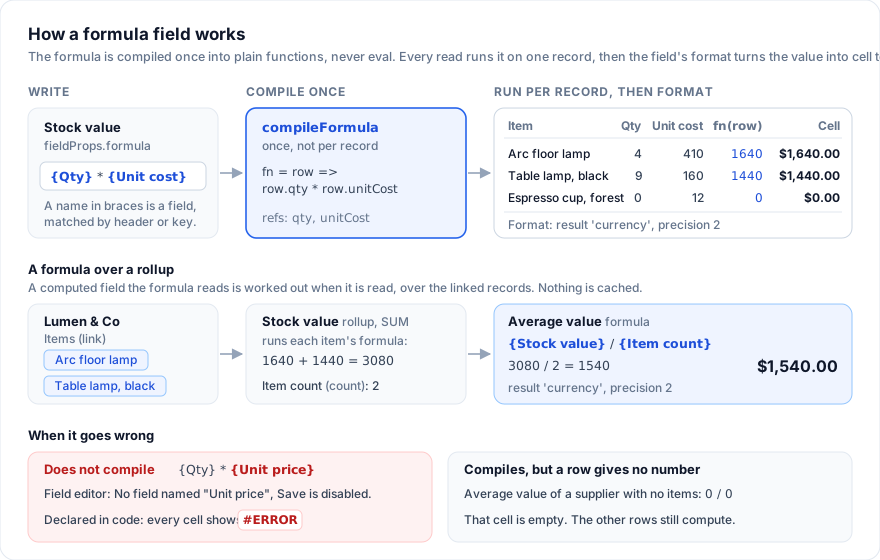
What you see:
- Arc floor lamp shows
$1,640.00, the espresso cups$0.00. The column is right-aligned because the result is a currency. - The footer shows the sum of the column,
$4,704.00, formatted like the cells. - The cells are read-only. Edit Qty and the stock value changes as you commit the edit.
- A form view leaves the field out: there is nothing to type.
- The value is never stored in the record. A base kept in a database does not write it either (see What is not written).
Format the result has the details of result,
precision and summary.
3. Branch with IF
A status that says whether to reorder, and how many to order:
const status = {
  field: 'status',
  header: 'Status',
  fieldType: 'formula',
  fieldProps: { formula: 'IF({Qty} = 0, "Out", IF({Qty} <= {Reorder level}, "Low", "OK"))' },
}
const toOrder = {
  field: 'toOrder',
  header: 'To order',
  fieldType: 'formula',
  fieldProps: { formula: 'IF({Qty} <= {Reorder level}, {Reorder level} * 2 - {Qty}, 0)', result: 'number', precision: 0 },
}
Status reads Low for the lamp (4 is at or under 5), OK for the table lamp and the mugs, Out for the espresso cups and Low for the speaker (2 is at its level of 2). To order shows 6, 0, 0, 24 and 2.
IF(condition, then, else) works out only the branch it takes, so
IF({Qty} = 0, 0, 1000 / {Qty}) never divides by zero. Without the third
argument the field is empty when the condition is false. SWITCH is lazy
the same way: only the result it returns is worked out.
A comparison on its own is a value too: {Qty} <= {Reorder level} shows
true or false in the cell.
4. Join text
& joins values into text:
{Item} & " (" & {Qty} & " in stock)"
gives Arc floor lamp (4 in stock). CONCATENATE({Item}, " x", {Qty}) does
the same with a function: Arc floor lamp x4.
Numbers join as plain numbers, without the format of the field they came
from. "$" & {Unit cost} * 1.15 gives $471.49999999999994; round first,
and it gives $471.5:
"$" & ROUND({Unit cost} * 1.15, 2)
* comes before &, so the multiplication needs no parentheses. An empty
field joins as nothing: an Arc floor lamp with no Qty shows
Arc floor lamp ( in stock).
5. Work with dates
When each item is due for its next count, and how long since the last one:
const nextCount = {
  field: 'nextCount',
  header: 'Next count',
  fieldType: 'formula',
  fieldProps: { formula: 'DATEADD({Last counted}, 90, "days")', result: 'date', dateFormat: 'friendly' },
}
const sinceCount = {
  field: 'sinceCount',
  header: 'Days since count',
  fieldType: 'formula',
  fieldProps: { formula: 'DATETIME_DIFF(TODAY(), {Last counted}, "days")', result: 'number', precision: 0 },
}
Next count shows December 4, 2026 for the lamp: DATEADD returns a date,
and a date shows in the field's dateFormat. Days since count is 39 on
October 14, 2026.
A date field stores a day as text, 2026-09-05. A formula reads it as that
day at local midnight, the same way the cell shows it and the way TODAY()
is, so DAY, WEEKDAY and DATETIME_DIFF give the same answer in every
time zone.
Other text is a date only when it has a four-digit year and a separator:
"October 5, 2026" and "10/05/2026" are dates, "1" and "12" are not,
so YEAR("1") is empty.
To put a date into text, turn it into YYYY-MM-DD with DATESTR first.
Joined as it is, a date becomes a UTC timestamp such as
2026-12-03T22:00:00.000Z:
"Count by " & DATESTR(DATEADD({Last counted}, 90, "days"))
gives Count by 2026-12-04.
DATETIME_DIFF(a, b, unit) is a minus b, cut to whole units, in
seconds when there is no unit. DATEADD(d, n, unit) adds n units, days
when there is no unit. Both take the same units:
| Unit | Also written |
|---|---|
milliseconds |
millisecond, ms |
seconds |
second, s |
minutes |
minute, m |
hours |
hour, h |
days |
day, d |
weeks |
week, w |
months |
month |
years |
year, y |
Case does not matter, so "M" is minutes too. Days, weeks, months and years
count calendar days, so a daylight-saving change in between does not cut a
day short. Adding months keeps the day inside the month: January 31 plus one
month is February 28. A unit written in the formula that is not in the table
is an error the editor shows; one read from a field gives an empty cell.
To test a date, compare it with another date:
IF(DATEADD({Last counted}, 90, "days") < TODAY(), "Count now", "")
When one side is a date value (from TODAY(), DATEADD and the like), the
other side is read as a date too, so {Last counted} < TODAY() works.
IS_BEFORE(a, b) and IS_AFTER(a, b) read both sides as dates whatever
they are, and are false when either side is empty.
6. Read another table
Add a Suppliers table and link each item to one. A formula cannot follow a link by itself; a lookup brings the linked field into the record, and the formula reads the lookup.
const suppliers = [
  { id: 's1', name: 'Lumen & Co', leadDays: 10, items: ['1', '2'] },
  { id: 's2', name: 'Kiln Ceramics', leadDays: 21, items: ['3', '4'] },
  { id: 's3', name: 'Signal Audio', leadDays: 7, items: ['5'] },
]

// Items: each row gets supplier: ['s1'] and so on, plus these columns.
const itemLinks = [
  { field: 'supplier', header: 'Supplier', fieldType: 'link', fieldProps: { table: 'suppliers', multiple: false, inverse: 'items' } },
  { field: 'supplierName', header: 'Supplier name', fieldType: 'lookup', fieldProps: { linkField: 'supplier', field: 'name' } },
  { field: 'leadTime', header: 'Lead time', fieldType: 'lookup', fieldProps: { linkField: 'supplier', field: 'leadDays' } },
  {
    field: 'reorderNote',
    header: 'Reorder note',
    fieldType: 'formula',
    fieldProps: { formula: 'IF({Qty} <= {Reorder level}, "Order " & ({Reorder level} * 2 - {Qty}) & " from " & {Supplier name}, "")' },
  },
  {
    field: 'arrives',
    header: 'Arrives by',
    fieldType: 'formula',
    fieldProps: { formula: 'DATEADD(TODAY(), {Lead time}, "days")', result: 'date', dateFormat: 'friendly' },
  },
]

const supplierTable = {
  id: 'suppliers',
  name: 'Suppliers',
  primaryField: 'name',
  data: suppliers,
  columns: [
    { field: 'name', header: 'Supplier', fieldType: 'text' },
    { field: 'leadDays', header: 'Lead time (days)', fieldType: 'number', fieldProps: { format: 'integer' } },
    { field: 'items', header: 'Items', fieldType: 'link', fieldProps: { table: 'items', multiple: true, inverse: 'supplier' } },
    { field: 'itemCount', header: 'Item count', fieldType: 'count', fieldProps: { linkField: 'items' } },
    { field: 'stockValue', header: 'Stock value', fieldType: 'rollup', fieldProps: { linkField: 'items', field: 'value', aggregation: 'SUM' } },
    { field: 'avgValue', header: 'Average value', fieldType: 'formula', fieldProps: { formula: '{Stock value} / {Item count}', result: 'currency', precision: 2 } },
  ],
}
Reorder note reads Order 6 from Lumen & Co for the lamp. A lookup is a
list, one value per linked record: joined into text it reads as the values
separated by commas, and in arithmetic it adds them up, so {Lead time} is
10 for the lamp. With no supplier the list is empty, which joins as nothing
and counts as 0.
It works the other way too. The Suppliers rollup sums Stock value, a
formula in Items, and shows $3,080.00 for Lumen & Co in the formula's
format. Average value is a formula over that rollup and the count:
$1,540.00. A supplier with no items divides by zero and shows an empty
cell.
Read the link field itself and you get record ids: {Supplier} is s1, not
the name. Use a lookup of the linked table's primary field for the name.
Tables and links has the rest of the link,
lookup and rollup setup.
7. Use the computed values
A formula field sorts, filters, groups and colors rows by what it computes, and its footer summary reads the same values:
import type { FieldView } from '@svgrid/enterprise/base'

const views: FieldView[] = [
  { id: 'stock', name: 'Stock', type: 'grid', state: { grouping: ['status'], sorting: [{ id: 'value', desc: true }] } },
  {
    id: 'reorder',
    name: 'Reorder',
    type: 'grid',
    color: {
      mode: 'conditions',
      rules: [
        { color: '#f82b60', condition: { column: 'status', kind: 'text', op: 'is', value: 'Out' } },
        { color: '#fcb400', condition: { column: 'status', kind: 'text', op: 'is', value: 'Low' } },
      ],
    },
    state: {
      advancedFilter: {
        kind: 'fieldFilter',
        conjunction: 'or',
        conditions: [
          { column: 'status', kind: 'text', op: 'is', value: 'Low' },
          { column: 'status', kind: 'text', op: 'is', value: 'Out' },
        ],
      },
    },
  },
  { id: 'value', name: 'Value by supplier', type: 'chart', chart: { kind: 'bar', x: 'supplier', y: 'value' } },
]
Stock groups the items by Status, highest value first in each group. Reorder shows the three items that need ordering and colors the espresso cups red, the other two yellow. The chart adds up Stock value per supplier.
In the charts, a formula can be the value added up only when its result
is number, currency or percent. Any formula can be the field a chart
groups by, and it groups by the computed value: a chart of Status has the
bars Low, OK and Out. A date result groups by month, as a date field does.
A lookup can group a chart too, one group per linked value.
In the view bar's filter, a formula field follows its result. number,
currency and percent get =, <, >= and the other number operators;
date gets is before, is within and the other date operators. With
result: 'auto' the column's cellDataType decides ('number' or
'date'), and without one the field gets the text operators (contains,
does not contain, is, is not, is empty, is not empty). A condition written
in code names its kind itself:
{ column: 'value', kind: 'number', op: 'gte', value: 1000 }.
Automations see computed values as well. A condition on a formula fires
when the formula's result starts to match, and {Field name} in a message
is the formatted value. A token matches a header or a field key the way a
formula does, ignoring case and outer spaces, so {reorder note} works too:
import type { BaseAutomation } from '@svgrid/enterprise/base'

const lowStock: BaseAutomation = {
  id: 'low-stock',
  name: 'Low stock',
  enabled: true,
  trigger: { type: 'recordMatches' },
  condition: { kind: 'fieldFilter', conjunction: 'and', conditions: [{ column: 'status', kind: 'text', op: 'is', value: 'Low' }] },
  actions: [{ type: 'notify', message: '{Item}: {Reorder note}', severity: 'warning' }],
}
The OKR template does this with a number: its "Target reached" automation runs when Progress, a formula, reaches 1.
8. Write a formula in the field editor
People who use the base can add formulas without code. Press "+" after the last column (or Edit field in a column's menu), name the field and pick Formula under "Computed and automatic". The editor shows:
- Formula: a text box. As you type, a message under it says what is
wrong (
No field named "Unit price",Unknown function SUMM) and the box is marked invalid. - A button for each other field. A click puts
{Field name}where the cursor is. - Functions: shows the name of every function the formula can call (Hide functions closes the list).
- Format the result as: As computed, Number, Currency, Percent or Date, then Precision for a number, currency or percent, Currency symbol for a currency, and Date format for a date.
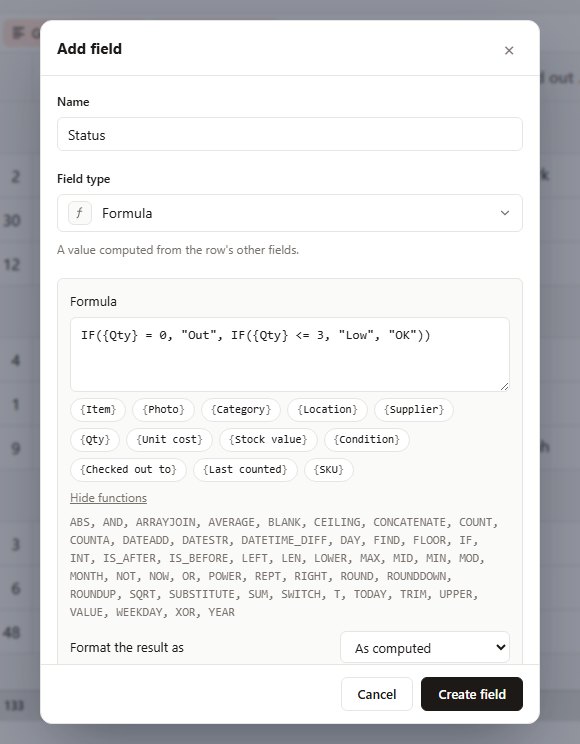
While the message shows, Save (Create field for a new field) is disabled, and its tooltip repeats the message. A formula left empty can be saved: its cells stay empty until someone writes it.
A formula cannot read its own field. The editor will not save
{Stock value} + 1 as the formula of Stock value, and the same formula
declared in code shows #ERROR in every cell.
The formula is kept as fieldProps.formula; onColumnAdd and
onColumnChange hand back the column list with it, ready to store (see
Create and edit fields).
The formula language
| Part | Written as | Notes |
|---|---|---|
| Field | {Unit cost} |
A header or field key, any case |
| Number | 12, 0.5, .5 |
No thousands separators |
| Text | "Low" or 'Low' |
\ before a character keeps it: "say \"hi\"" |
| True and false | TRUE, FALSE |
Any case |
| Function | ROUND({Qty} * 1.1, 0) |
Any case: round(...) works |
| Grouping | ( ... ) |
Operators, from the first applied to the last:
| Operators | Does |
|---|---|
- before a value |
Negates it |
* / |
Multiply, divide. Dividing by zero gives an empty value |
+ - |
Add, subtract |
& |
Joins as text |
= != <> < > <= >= |
Compare; <> is the same as != |
There is no ^ (use POWER), no % (use MOD) and no ==.
How values turn into each other:
- In arithmetic, an empty field is 0,
TRUEis 1, text that is a number ("12") is that number, and other text gives no number, so the cell is empty. A lookup's list adds up. - In a comparison, when either side is a date value both sides compare
as dates: a stored
"2026-09-05"is read as that day, and an empty or unreadable side matches nothing (only!=is true). When either side is a number, both compare as numbers:{Qty} = "4"is true. Otherwise they compare as text, exactly:"a" = "A"is false, and"10" < "9"is true. - In IF, AND, OR and NOT, empty,
FALSEand 0 are false. Everything else is true, including the text"0"and"false".
Functions
The editor's Functions list has the same names as FORMULA_FUNCTIONS.
Examples use the lamp: Item Arc floor lamp, Qty 4, Unit cost 410, Reorder
level 5, Last counted 2026-09-05, Status Low.
Logic
| Function | Does | Example |
|---|---|---|
IF(cond, then, else) |
then when cond is true, else else (or empty) |
IF({Qty} > 3, "many", "few") is many |
AND(a, b, ...) |
True when every argument is true | AND({Qty} > 0, {Qty} <= 5) is true |
OR(a, b, ...) |
True when any argument is true | OR({Qty} = 0, {Qty} > 3) is true |
NOT(a) |
The opposite | NOT({Qty} > 3) is false |
XOR(a, b, ...) |
True when an odd number of arguments are true | XOR(TRUE, FALSE, TRUE) is false |
BLANK() |
An empty value | IF({Qty} > 0, {Qty}, BLANK()) |
SWITCH(v, m1, r1, ..., default) |
The result after the first match of v, compared as text; else the default or empty. Only that result is worked out |
SWITCH({Status}, "Out", "Order now", "Low", "Order soon", "") is Order soon |
Text
| Function | Does | Example |
|---|---|---|
CONCATENATE(a, b, ...) |
Joins the arguments | CONCATENATE({Item}, " x", {Qty}) is Arc floor lamp x4 |
LEN(t) |
Number of characters | LEN({Item}) is 14 |
UPPER(t), LOWER(t) |
Changes case | UPPER(LEFT({Item}, 3)) is ARC |
TRIM(t) |
Drops spaces at both ends | TRIM(" bolt ") is bolt |
LEFT(t, n) |
First n characters (default 1) |
LEFT({Item}, 3) is Arc |
RIGHT(t, n) |
Last n characters (default 1) |
RIGHT({Item}, 4) is lamp |
MID(t, start, n) |
n characters from position start (1 is the first); without n, the rest |
MID({Item}, 5, 5) is floor, MID({Item}, 5) is floor lamp |
FIND(part, t, start) |
Position of part in t, 0 when missing; case matters |
FIND("lamp", {Item}) is 11 |
SUBSTITUTE(t, old, new) |
Replaces every old |
SUBSTITUTE({Item}, " ", "-") is Arc-floor-lamp |
REPT(t, n) |
t repeated n times, at most 1000 |
REPT("*", {Qty}) is **** |
T(v) |
v when it is text, else empty text |
T({Qty}) is empty |
VALUE(t) |
The number in a text, ignoring other characters; empty when there is no digit | VALUE("$1,200.50") is 1200.5, VALUE("n/a") is empty |
ARRAYJOIN(list, sep) |
A lookup's values joined by sep (default , ), empty ones left out |
ARRAYJOIN({Supplier name}, " / ") |
Numbers
| Function | Does | Example |
|---|---|---|
SUM(a, b, ...) |
Adds; lists add up too | SUM({Qty}, 2, 3) is 9 |
AVERAGE(a, b, ...) |
Mean of the values that are not empty | AVERAGE(2, 4, "") is 3 |
MAX(...), MIN(...) |
Largest, smallest; empty values ignored | MAX(0, MIN(1, 1.4)) is 1 |
COUNT(...) |
How many arguments are numbers | COUNT(1, "2", 3) is 2 |
COUNTA(...) |
How many are not empty | COUNTA(1, "", "x") is 2 |
ROUND(x, digits) |
Rounds; negative digits round to tens, hundreds | ROUND(1234.5, -2) is 1200 |
ROUNDUP(x, digits) |
Rounds up | ROUNDUP(2.41, 1) is 2.5 |
ROUNDDOWN(x, digits) |
Rounds down | ROUNDDOWN(2.49, 1) is 2.4 |
INT(x) |
Rounds down to a whole number | INT(-2.5) is -3 |
ABS(x) |
Drops the sign | ABS(-3) is 3 |
MOD(x, d) |
Remainder, with the sign of x |
MOD(7, 3) is 1, MOD(-7, 3) is -1 |
POWER(x, p) |
x to the power p |
POWER(2, 10) is 1024 |
SQRT(x) |
Square root; empty for a negative | SQRT(16) is 4 |
CEILING(x, s), FLOOR(x, s) |
Up or down to a multiple of s (default 1) |
CEILING(2.1) is 3, CEILING(7, 5) is 10, FLOOR(2.37, 0.05) is 2.35 |
Dates
| Function | Does | Example |
|---|---|---|
TODAY() |
Today at midnight, local time | DATEADD(TODAY(), 7, "days") |
NOW() |
This moment | NOW() > TODAY() is true |
YEAR(d), MONTH(d), DAY(d) |
Parts of a date; months count from 1 | MONTH({Last counted}) is 9 |
WEEKDAY(d) |
Day of the week, 0 for Sunday | WEEKDAY({Last counted}) is 6 |
DATEADD(d, n, unit) |
d plus n units (default days); units in step 5 |
DATEADD({Last counted}, 2, "weeks") is September 19, DATEADD({Last counted}, 1, "months") is October 5 |
DATETIME_DIFF(a, b, unit) |
a minus b in whole units (default seconds) |
DATETIME_DIFF("2026-10-14", {Last counted}, "days") is 39, with "months" it is 1 |
IS_BEFORE(a, b), IS_AFTER(a, b) |
Compare two dates; false when either is empty | IS_BEFORE({Last counted}, "2026-10-01") is true |
DATESTR(d) |
The date as YYYY-MM-DD text |
DATESTR(DATEADD({Last counted}, 90, "days")) is 2026-12-04 |
Format the result
The formula computes a number, text, true/false, a date or a list.
fieldProps.result says how the cell shows a number, and a date written as
text:
result |
Shows | Other properties |
|---|---|---|
auto (default, "As computed") |
A number as is, rounded to 10 decimals: 1640 |
|
number |
1640 as 1,640.0 |
precision |
currency |
1640 as $1,640.00 |
precision, symbol (default $) |
percent |
0.4 as 40% |
precision |
date |
Text written as a stored date (2026-12-04 or 2026-12-04T10:30:00Z) as a date; other text as it is |
dateFormat: local, friendly, us, european, iso |
Whatever result says, a date value (from TODAY(), DATEADD) shows as a
date in dateFormat (local without one), true and false show as those
words, and a list shows its values joined by commas. Text shows as it is.
Under date, only text in the stored-date form turns into a date, so
IF({Qty} = 0, "Count now", DATEADD({Last counted}, 90, "days")) shows
Count now or the date, and "1" stays 1. A number with
result: 'date' stays a number.
Set precision (0 to 8) for a number, currency or percent. Without it the
cell uses the number field's defaults: 1 decimal place for a number, 2 for a
currency and 0 for a percent.
result also decides the footer. With number, currency or percent the
footer offers Sum, Average, Median, Min, Max and Range; with date it
offers Earliest date, Latest date and Date range (days); with auto only
Empty, Filled, Unique, Percent empty and Percent filled. Set result on any
formula you want to add up, and keep the choice in fieldProps.summary, as
in step 2 (Summaries at the bottom).
When a formula is wrong
There are two kinds of problem, and they show differently:
- The formula does not compile. The field editor shows the message and
will not save:
No field named "Nope",Unknown function FOO,Unknown unit "fortnights" in DATEADD: ...,Expected ")" at the end,The formula ends too early,Unclosed "{" at 1,Unclosed text at 1,Unexpected "^" at 7,A formula cannot read its own field {Stock value}. Positions count characters from 1. A formula declared in code with a mistake, or one that stops compiling because a field it reads was deleted, shows#ERRORin every cell. Delete field in a column's menu asks first when formulas read the field, and names them: "These formulas read it and will show #ERROR: Stock value, Status." - It compiles, but a row gives no number. Division by zero,
"abc" * 2,SQRT(-1): that cell is empty, and the other rows still compute.
Rename a field a formula reads
Rename "Unit cost" to "Cost" in the field editor and every other formula in
the table that reads {Unit cost} now reads {Cost}. Stock value keeps
working, and onColumnChange hands back the column list with the rewritten
formulas, ready to store. Text inside quotes is left alone: "{Unit cost}"
stays as it is.
A reference to the field key needs no rewrite, because renaming changes
the header only: {qty} * {unitCost} keeps working whatever people call
the columns. When a header is also the key, as with "Qty" and qty, both
spellings follow the new name, and both still read the field.
Only a rename made in the field editor rewrites formulas. Change a header
in the columns you pass the grid and {Unit cost} names no field any more:
the formula shows #ERROR until you change it too.
Turn a formula into a stored field
Change a formula field's type in the field editor, to Number or Single line
text for example, and each record stores the value the formula computed,
converted to the new type. Stock value to Number stores 1640 for the
lamp; to Single line text it stores "1640", not the formatted
$1,640.00; a date result becomes YYYY-MM-DD. Before you save, the
editor says "Every value converts." or how many cells will be cleared or
cut short. The
values arrive in onColumnChange as data. A formula that did not
compile stores nothing. Lookups, rollups and counts convert the same way.
Formulas from code
The same parser is exported, for checking a formula in your own UI or computing a value outside the grid.
| Export | What it is |
|---|---|
compileFormula(src, resolve) |
Returns { fn, refs }, or throws FormulaError (an empty formula throws too) |
formulaError(src, resolve) |
The message, or null when the formula compiles |
FormulaError |
The error class, with the message the editor shows |
FORMULA_FUNCTIONS |
Every function name, sorted |
resolve turns a name from the braces into the row key it reads, or null
for no such field. fn(row) never throws: a problem gives null. refs
lists the keys the formula reads.
import { compileFormula, formulaError } from '@svgrid/enterprise/base'

const columns = [
  { field: 'qty', header: 'Qty' },
  { field: 'unitCost', header: 'Unit cost' },
]
const resolve = (name: string) => {
  const n = name.trim().toLowerCase()
  const hit = columns.find((c) => c.header.toLowerCase() === n || c.field.toLowerCase() === n)
  return hit ? hit.field : null
}

formulaError('{Qty} * {Unit cost}', resolve) // null
formulaError('{Qty} * {Unit price}', resolve) // 'No field named "Unit price"'

const { fn, refs } = compileFormula('{Qty} * {Unit cost}', resolve)
fn({ qty: 4, unitCost: 410 }) // 1640
refs // ['qty', 'unitCost']
A formula box of your own, with the same message under it as the field editor:
<script lang="ts">
  import { formulaError, FORMULA_FUNCTIONS } from '@svgrid/enterprise/base'

  let { columns }: { columns: Array<{ field: string; header: string }> } = $props()
  let formula = $state('')

  const resolve = (name: string) => {
    const n = name.trim().toLowerCase()
    const hit = columns.find((c) => c.header.trim().toLowerCase() === n || c.field.toLowerCase() === n)
    return hit ? hit.field : null
  }
  const message = $derived(formula.trim() ? formulaError(formula, resolve) : null)
</script>

<textarea bind:value={formula} rows="3" aria-invalid={!!message}></textarea>
{#if message}<p class="formula-error">{message}</p>{/if}
<p class="formula-help">{FORMULA_FUNCTIONS.join(', ')}</p>
On the server, where formula values are not stored, compute them with the same formula. A SvelteKit endpoint that totals the stock:
// src/routes/api/stock-value/+server.ts
import { json } from '@sveltejs/kit'
import { compileFormula, FormulaError } from '@svgrid/enterprise/base'
import { loadItems } from '$lib/server/items'

const keys: Record<string, string> = { qty: 'qty', 'unit cost': 'unitCost' }
const resolve = (name: string) => keys[name.trim().toLowerCase()] ?? null

export async function GET() {
  try {
    const { fn } = compileFormula('{Qty} * {Unit cost}', resolve)
    const items: Array<Record<string, unknown>> = await loadItems()
    const total = items.reduce((sum, row) => sum + Number(fn(row) ?? 0), 0)
    return json({ total })
  } catch (e) {
    if (e instanceof FormulaError) return json({ error: e.message }, { status: 400 })
    throw e
  }
}
For the text the cell shows, format included, fill the column the way the
grid does. fillFieldColumn gives back the column with its fieldFn and
formatter:
import { enableBase, fillFieldColumn } from '@svgrid/enterprise/base'

enableBase()

const columns = [
  { field: 'qty', header: 'Qty', fieldType: 'number' },
  { field: 'unitCost', header: 'Unit cost', fieldType: 'number' },
]
const value = { field: 'value', header: 'Stock value', fieldType: 'formula', fieldProps: { formula: '{Qty} * {Unit cost}', result: 'currency', precision: 2 } }

const filled = fillFieldColumn(value, columns)
const compute = filled.fieldFn as (row: Record<string, unknown>) => unknown
const show = filled.formatter as (c: { value: unknown }) => string
show({ value: compute({ qty: 4, unitCost: 410 }) }) // "$1,640.00" in an English locale
How it runs
A formula is parsed once, when its column is filled (on load and after any
change to the fields), into plain functions. Nothing is passed to eval or
Function, so a formula a user types cannot run code.
Each read runs those functions against the record, and nothing is cached between reads. A formula that reads another formula, a lookup, a rollup or a count works that field out at the same moment, over the linked records where it has to. A chain that loops back on itself stops after a few steps and reads the stored record (empty) instead of hanging.
Pitfalls
- A date field holds a day, not a moment. It reads as local midnight, so
{Last counted} = TODAY()can be true but{Last counted} = NOW()never is. - Two dates as text compare as text. A stored date against another
stored date, or against a date written in quotes
(
{Last counted} < "2026-10-01"), compares as text. That ordersYYYY-MM-DDcorrectly, but an empty date is "before" every date. UseIS_BEFOREandIS_AFTER, or compare with a date value such asTODAY(), when empty dates should match nothing. - A date joined with
&is a UTC timestamp. Wrap it inDATESTR. - An empty number is 0.
{Qty} = 0is true for an item with no Qty, so step 3 calls it Out. - Text comparisons are exact.
=andSWITCHcare about case and spaces:"low"does not match"Low". "m"is minutes. So is"M". Write"months"for months.
Next
- Linked records: links, lookups and rollups between tables, which formulas read.
- Views: filters, sorts, groups and charts over computed fields.
- Automations: conditions and messages that use formula results.
- Your own field type: a computed type of your own when a formula is not enough.
- Field types: every type and its
fieldProps.
Related articles
- Column Definitions in SvGrid - Fields, Accessors, and Formatting - A practical look at how ColumnDef controls field binding, value resolution, sort behavior, and custom cell rendering in SvGrid.