People, comments and files
A tracker one person fills in needs a status column and little else. Once a team uses it, people want to see who a task is assigned to, who changed the status and when, a thread of comments on the task, and the mockups attached to it, kept somewhere that survives a reload. This page adds those to the task tracker from Build a project tracker.
SvGrid Base is part of the Suite edition of
@svgrid/enterprise. Without a key it runs with a watermark.
In the demo, double-click a candidate's card on the pipeline (or switch to "All candidates" and press Space on a row), change the Stage, leave a comment, and watch the Activity column on the right of the record.
The base cannot know who your users are or where your files and comments live. You tell it with four calls in the browser; the change log needs nothing:
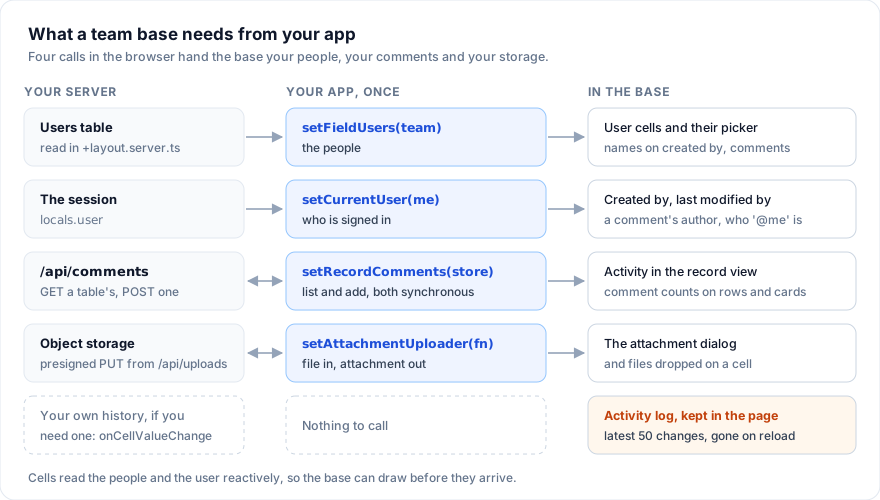
Each step below works on its own.
1. List the people
User fields pick from one list of people that you hand to the base. A person
is a FieldUser:
import { setFieldUsers, type FieldUser } from '@svgrid/enterprise/base'

const team: FieldUser[] = [
  { id: 'u1', name: 'Ana Ruiz', email: '[email protected]', avatarUrl: 'https://cdn.example.com/ana.jpg' },
  { id: 'u2', name: 'Ben Okafor', email: '[email protected]' },
  { id: 'u3', name: 'Cleo Park', email: '[email protected]' },
]

// In the browser only; step 2 shows where in SvelteKit.
setFieldUsers(team)
Give the tasks a user field for the owner and one with multiple for
reviewers. The cell stores ids, never names, so renaming a person renames
them everywhere:
const columns = [
  { field: 'task', header: 'Task', fieldType: 'text' },
  { field: 'status', header: 'Status', fieldType: 'singleSelect', fieldProps: { options: STATUS } },
  { field: 'assignee', header: 'Assignee', fieldType: 'user' },
  { field: 'reviewers', header: 'Reviewers', fieldType: 'user', fieldProps: { multiple: true } },
]

const data = [
  { id: 't1', task: 'Write the brief', status: 'Todo', assignee: 'u1', reviewers: ['u2', 'u3'] },
  { id: 't2', task: 'Pick the fonts', status: 'In progress', assignee: 'u2', reviewers: [] },
]
A cell draws an avatar and the name. With several people it overlaps up to
four avatars and writes the first name with a count: "Ben Okafor +1".
avatarUrl is used when it is an http(s):, blob: or data:image URL;
anything else, or no URL, draws the initials on a color worked out from the
name, so a person keeps the same color on every page. An id that is not in
the list shows as the id itself.
Editing a user cell opens a panel with a "Find a person" box and the people
from the list, each with their avatar; typing filters them. If the list is
empty the panel says "No people (setFieldUsers)". Text pasted or filled into
a user cell is matched against each person's id, name and email, ignoring
case; a multiple field takes them comma-separated and drops repeats. A name
that matches nobody stays as typed, so check pasted data. Copying a user cell
writes the names, so a copy and paste between records keeps the people.
fieldProps.default takes an id for new rows. The field reference has the
user field's properties.
A Kanban view can stack by a single user field (stackBy: 'assignee'): one
lane per person in the list, plus "Uncategorized" while some task has nobody.
Dragging a card to a lane reassigns the task through the grid's edit path,
so it counts as an edit.
2. Say who is signed in
setCurrentUser names the person using the page. Several things read it:
createdByfills new rows with their id, andlastModifiedBywrites it on every edit it watches.- Each comment is saved with their id as
by. - Each change in a record's activity is noted with their id.
- A filter condition with the value
'@me'(ME) matches them. - Your own code can read it with
getCurrentUser().
In SvelteKit the session is on the server, so load the person and the team in a layout and hand both to the base in the browser:
// src/routes/(app)/+layout.server.ts
import { redirect } from '@sveltejs/kit'
import type { LayoutServerLoad } from './$types'
import { db } from '$lib/server/db'

export const load: LayoutServerLoad = async ({ locals }) => {
  if (!locals.user) redirect(303, '/login')
  const team = await db.query(
    'select id, name, email, avatar_url as "avatarUrl" from users where team_id = $1 order by name',
    [locals.user.teamId],
  )
  return { me: { id: locals.user.id, name: locals.user.name }, team: team.rows }
}
<!-- src/routes/(app)/+layout.svelte -->
<script lang="ts">
  import type { Snippet } from 'svelte'
  import { setCurrentUser, setFieldUsers, type FieldUser } from '@svgrid/enterprise/base'

  let { data, children }: { data: { me: FieldUser; team: FieldUser[] }; children: Snippet } = $props()

  // Again when the data changes: a sign-in as someone else.
  $effect.pre(() => {
    setFieldUsers(data.team)
    setCurrentUser(data.me)
  })
</script>

{@render children()}
The four setters on this page write state shared by the whole module, so
call them in the browser only: an $effect as here (it does not run during
server rendering), onMount, or behind browser from $app/environment.
Called at the top of a component's <script>, they would also run on the
server and hand one request's team and user to the next. Cells and pickers
read both values reactively, so the base can draw before they arrive. The signed-in person does not have to be in the team list for
their name to show, but they only appear in the picker if they are.
Now add who made each task and when, and give a new task to whoever adds it:
import { getCurrentUser, type BaseTable } from '@svgrid/enterprise/base'

const tasks: BaseTable = {
  id: 'tasks',
  name: 'Tasks',
  primaryField: 'task',
  data,
  columns: [
    ...columns,
    { field: 'createdBy', header: 'Created by', fieldType: 'createdBy' },
    { field: 'createdAt', header: 'Created', fieldType: 'createdTime', fieldProps: { dateFormat: 'friendly' } },
  ],
  props: {
    rowAdder: { label: 'Add task', defaults: () => ({ status: 'Todo', assignee: getCurrentUser()?.id ?? null }) },
  },
}
Both fields are read-only. Every record the base makes gets the current user and the time: "+ Add row", a form, the record menu, "+ Add a card" on a Kanban, a calendar day. Last modified fields start out the same way. Rows you load keep whatever your database sends.
On sign-out, call closeRecord(), then setCurrentUser(null) and
setFieldUsers([]).
3. Add a "My tasks" view
A filter condition on a user field compares it with a person's id. The value
'@me' (exported as ME) stands for whoever is signed in when the filter
runs, so one view works for everyone:
import { ME, type FieldView } from '@svgrid/enterprise/base'

const views: FieldView[] = [
  {
    id: 'mine',
    name: 'My tasks',
    type: 'grid',
    state: {
      advancedFilter: {
        kind: 'fieldFilter',
        conjunction: 'or',
        conditions: [
          { column: 'assignee', kind: 'select', op: 'is', value: ME },
          { column: 'reviewers', kind: 'multi', op: 'hasAnyOf', value: [ME] },
        ],
      },
    },
  },
  { id: 'all', name: 'All tasks', type: 'grid' },
]
In the Filter panel the person picker lists "Me" first, so users can build the same view themselves. The condition reads "Assignee is me".
A single user field filters with the select operators (is, isNot,
isAnyOf, isNoneOf), a multiple one with hasAnyOf, hasAllOf,
isExactly and hasNoneOf; both also have isEmpty and isNotEmpty.
Created by and last modified by filter the same way, so "Created by is me"
works too. The filter conditions table
lists them all.
The view stores '@me', not an id, so it can be saved with the other views
(onViewsChange, or the views inside onTablesChange) and Ben sees his own
tasks when he opens it.
4. Open a record
expandRows with showRowNumbers turns the row number into a checkbox and an
expand button:
<SvBase bind:tables editable showRowNumbers expandRows onTablesChange={save} />
A record opens from the expand button, from Space on a selected cell (not a
checkbox cell, and only with expandRows), from "Expand record" in the
right-click menu, from a gallery card, from a double click (or F2) on a
Kanban card, from a calendar event and from a Gantt task.
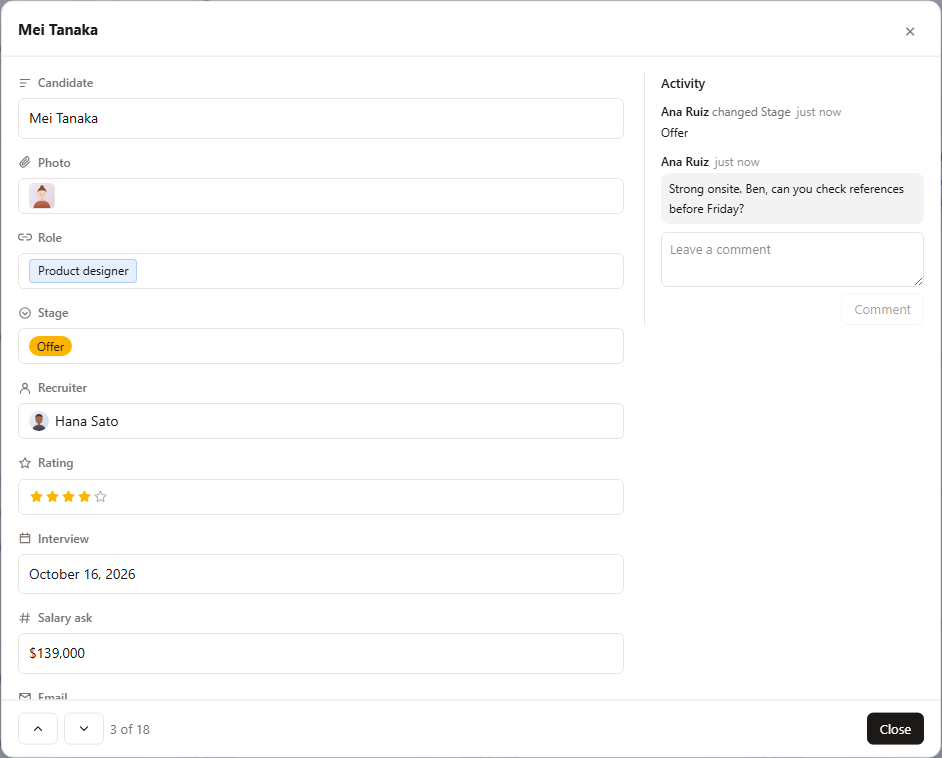
The record shows:
- The primary field as the title.
- Every field with its type icon and name, drawn as its cell draws it. A click
opens the cell's own editor; the value is written through the grid's edit
path, so undo, validation,
onCellValueChangeand last-modified fields work the same as in the cell. Read-only fields say "read-only". - Fields hidden in the view, folded under "Show N hidden fields" and marked "hidden in the grid". They are read-only here.
- Activity on the right: changes and comments, oldest first, with "just now",
"5 minutes ago", "3 hours ago" or the date. The box under them takes a
comment; Ctrl+Enter (Cmd+Enter) or Comment sends it. A base without
editablestill takes comments. - Previous and next buttons that step through the rows in the view's order, and "3 of 12".
A record with comments shows how many by its row number (the pointer over the row swaps the count for the checkbox and expand button) and as a badge on its Kanban card. The card's badge opens the record with the comment box focused, as does "Comment" in the right-click menu of a row or a card.
On a narrow screen the activity moves under the fields. If an edit makes the record leave the view's filter, the record says "This row is not in the grid's view any more." and the footer "Not in view (12 records)". Previous and next still work: they move to the records that were before and after it.
App code opens a record with the grid api that onApiReady hands it:
import { openRecord, closeRecord } from '@svgrid/enterprise/base'

let api: unknown
// <SvBase ... onApiReady={(a) => (api = a)} />

openRecord({ api, rowId: 't1' })
openRecord({ api, rowId: 't1', focus: 'comment' }) // with the comment box focused
closeRecord(api)
closeRecord() closes whatever record is open, from anywhere: call it on
sign-out or when the route changes. closeRecord(api) closes it only when it
is open on that grid. A custom field type's cell component gets the grid
as ctrl (with row.id), and openRecord({ ctrl, rowId }) takes that too.
A button field's fieldProps.onClick receives { row, rowId, columnId, api },
so a button can open its own record.
5. Keep comments in your backend
Without a store, comments live in memory and are gone on reload. A comment is
a RecordComment, and a store is two functions:
export type RecordComment = { id: string; rowId: string; tableId?: string; text: string; at: number; by?: string }

export type RecordCommentContext = { tableId?: string; api: unknown }

export type RecordCommentStore = {
  list: (rowId: string, api: unknown, context: RecordCommentContext) => ReadonlyArray<RecordComment>
  add: (rowId: string, comment: RecordComment, api: unknown, context: RecordCommentContext) => void
}
rowId is the record's id (its id, or the table's getRowId). In
<SvBase tables>, context.tableId (and the comment's tableId) names the
table, so Tasks 1 and Milestones 1 are two records; with one table it is
undefined. at is milliseconds since 1970, by the id of the person who was
signed in. The record view makes id, at and by itself and calls add.
A store written for list(rowId, api) and add(rowId, comment, api) still
works.
Both functions are synchronous, and list runs often: for the open record,
and for every row the grid draws (with expandRows) and every Kanban card,
to show the comment count. So fetch a whole table's comments once into reactive state and answer
from it. Because list runs inside the base's reactive code, the counts and
the record draw again when the fetch lands:
// src/lib/comments.svelte.ts
import { browser } from '$app/environment'
import { toast } from '@svgrid/grid'
import { setRecordComments, type RecordComment, type RecordCommentStore } from '@svgrid/enterprise/base'

type ByRecord = Record<string, ReadonlyArray<RecordComment>>

// Each table's comments by record id, fetched once per table.
let byTable = $state.raw<Record<string, ByRecord>>({})
const asked = new Set<string>()

function put(table: string, rowId: string, list: ReadonlyArray<RecordComment>) {
  byTable = { ...byTable, [table]: { ...byTable[table], [rowId]: list } }
}

async function load(table: string) {
  asked.add(table)
  const res = await fetch(`/api/comments?table=${encodeURIComponent(table)}`)
  if (!res.ok) return void asked.delete(table)
  const grouped: Record<string, RecordComment[]> = {}
  for (const c of (await res.json()) as RecordComment[]) (grouped[c.rowId] ??= []).push(c)
  byTable = { ...byTable, [table]: grouped }
}

const store: RecordCommentStore = {
  list(rowId, _api, { tableId = '' }) {
    if (!asked.has(tableId)) void load(tableId)
    return byTable[tableId]?.[rowId] ?? []
  },
  add(rowId, comment, _api, { tableId = '' }) {
    const mine = () => byTable[tableId]?.[rowId] ?? []
    // Shown at once; the server's copy replaces it, or it goes away again.
    put(tableId, rowId, [...mine(), comment])
    fetch('/api/comments', {
      method: 'POST',
      headers: { 'content-type': 'application/json' },
      body: JSON.stringify({ id: comment.id, tableId, rowId, text: comment.text }),
    })
      .then(async (res) => {
        if (!res.ok) throw new Error(`HTTP ${res.status}`)
        const saved = (await res.json()) as RecordComment
        put(tableId, rowId, mine().map((c) => (c.id === comment.id ? saved : c)))
      })
      .catch(() => {
        put(tableId, rowId, mine().filter((c) => c.id !== comment.id))
        toast.error('Your comment was not saved')
      })
  },
}

// On the server this cache would be shared by every request.
if (browser) setRecordComments(store)
Import the file once, in the page that shows the base. The failure notice
needs one <SvToaster /> from @svgrid/grid in the app.
setRecordComments(null) goes back to memory. For a table with a very large
discussion, have the endpoint return counts per record and fetch a record's
comments when it opens.
The endpoint takes the author and the time from the server, never from the request body:
// src/routes/api/comments/+server.ts
import { error, json } from '@sveltejs/kit'
import type { RequestHandler } from './$types'
import { db } from '$lib/server/db'

export const GET: RequestHandler = async ({ url, locals }) => {
  if (!locals.user) error(401, 'Sign in first')
  const tableId = url.searchParams.get('table') ?? ''
  // `at` is a bigint column; the cast hands it back as a number, not a string.
  const { rows } = await db.query(
    'select id, table_id as "tableId", row_id as "rowId", text, at::float8 as at, author as "by" from comments where team_id = $1 and table_id = $2 order by at',
    [locals.user.teamId, tableId],
  )
  return json(rows)
}

export const POST: RequestHandler = async ({ request, locals }) => {
  if (!locals.user) error(401, 'Sign in first')
  const body = (await request.json()) as { id?: unknown; tableId?: unknown; rowId?: unknown; text?: unknown }
  const text = String(body.text ?? '').trim().slice(0, 4000)
  if (typeof body.id !== 'string' || typeof body.rowId !== 'string' || !text) error(400, 'Bad comment')
  const tableId = typeof body.tableId === 'string' ? body.tableId : ''
  const comment = { id: body.id, tableId, rowId: body.rowId, text, at: Date.now(), by: locals.user.id }
  await db.query(
    'insert into comments (id, team_id, table_id, row_id, text, at, author) values ($1, $2, $3, $4, $5, $6, $7)',
    [comment.id, locals.user.teamId, comment.tableId, comment.rowId, comment.text, comment.at, comment.by],
  )
  return json(comment, { status: 201 })
}
The activity names the author from the people list: a by that is not in
setFieldUsers (and is not the current user) shows as "Someone", and a
comment with no by shows as "You". Keep people who left the team in the
list, or return their name from your own data.
Comments other people add show once the cache changes. To see them while the
base is open, call put from your realtime channel or a poll.
6. Upload files
An attachment cell holds an array of Attachment: id, url, name,
type (the MIME type), and optional size, width, height and
thumbnailUrl (a smaller image the cell uses instead of url). The
attachments section of the field reference has
an example value.
Without an uploader, added files stay in the page as blob: URLs and are
gone on reload. setAttachmentUploader sets the function every attachment
column uses. It gets the File and an AttachmentUploadContext: row (the
record), columnId, a signal that aborts when the user removes the file
or closes the dialog, and onProgress(fraction) with a value from 0 to 1.
It returns the attachment.
This one asks your server for a presigned URL and sends the bytes straight
to object storage. It uses XMLHttpRequest because fetch reports no upload
progress:
// src/lib/uploads.ts
import { browser } from '$app/environment'
import { setAttachmentUploader, type AttachmentUploader } from '@svgrid/enterprise/base'

const upload: AttachmentUploader = async (file, { columnId, signal, onProgress }) => {
  const res = await fetch('/api/uploads', {
    method: 'POST',
    headers: { 'content-type': 'application/json' },
    body: JSON.stringify({ name: file.name, type: file.type, size: file.size, columnId }),
    signal,
  })
  if (!res.ok) throw new Error(res.status === 413 ? 'File is too large' : `Upload refused (${res.status})`)
  const { id, uploadUrl, fileUrl } = (await res.json()) as { id: string; uploadUrl: string; fileUrl: string }

  await new Promise<void>((resolve, reject) => {
    const xhr = new XMLHttpRequest()
    xhr.open('PUT', uploadUrl)
    xhr.setRequestHeader('content-type', file.type || 'application/octet-stream')
    xhr.upload.onprogress = (e) => e.lengthComputable && onProgress(e.loaded / e.total)
    xhr.onload = () => (xhr.status < 300 ? resolve() : reject(new Error(`Storage said ${xhr.status}`)))
    xhr.onerror = () => reject(new Error('Network error'))
    xhr.onabort = () => reject(new Error('Cancelled'))
    signal.addEventListener('abort', () => xhr.abort(), { once: true })
    xhr.send(file)
  })

  return { id, url: fileUrl, name: file.name, type: file.type, size: file.size }
}

if (browser) setAttachmentUploader(upload)
The message of the error you throw is what the user reads on the failed tile, next to Retry and Remove, so write it for them.
The server checks the user and the size, signs a URL for one key, and keeps a row per file:
// src/routes/api/uploads/+server.ts
import { error, json } from '@sveltejs/kit'
import type { RequestHandler } from './$types'
import { db } from '$lib/server/db'
import { presignPut } from '$lib/server/storage'

const MAX = 25 * 1024 * 1024

export const POST: RequestHandler = async ({ request, locals, url }) => {
  if (!locals.user) error(401, 'Sign in first')
  const { name, type, size } = (await request.json()) as { name: string; type: string; size: number }
  if (!(size > 0 && size <= MAX)) error(413, 'File is too large')
  const id = crypto.randomUUID()
  const safe = String(name).replace(/[^\w.-]+/g, '_')
  const key = `${locals.user.teamId}/${id}/${safe}`
  await db.query('insert into files (id, team_id, key, type) values ($1, $2, $3, $4)', [id, locals.user.teamId, key, type])
  return json({ id, uploadUrl: await presignPut(key, type), fileUrl: `${url.origin}/api/files/${id}/${safe}` })
}
fileUrl points at your app, not at the bucket. A presigned read URL
expires, and a cell keeps its URL for as long as the record exists. Serve
/api/files/[id]/[name] with a GET that checks the user and the team,
looks up the key by id and answers redirect(303, signedReadUrl):
thumbnails, the preview and Download all follow the redirect, and old records
keep working.
The URL is absolute and ends in the file name for the sake of copy and
paste. Copying an attachment cell writes the files' URLs, and a paste
attaches each http(s) URL it finds, taking the name from the path and the
type from its extension. A relative URL would show fine in the cell but be
dropped on paste, and a URL without the name would come back as a file named
by its id, an image drawn as a chip.
The column limits what the dialog takes with
AttachmentFieldProps: accept (as for
<input accept>, such as 'image/*,.pdf'), maxFiles (default 20) and
maxSize in bytes (default 25 MB). A file over a limit is listed under the
tiles with the reason, such as "At most 1 file", "Larger than 2 MB" or "Not
an accepted type". A URL added in the dialog, and text pasted into a cell,
are checked the same way, their type read from the extension: what fails is
dropped, the rest is kept. The field editor offers accept and maxFiles;
maxSize is set in code:
const photo = {
  field: 'photo',
  header: 'Photo',
  fieldType: 'attachment',
  fieldProps: { accept: 'image/*', maxFiles: 1, maxSize: 2 * 1024 * 1024 },
}
fieldProps.upload sets an uploader for one column instead of the app's.
What the user sees
The cell shows images as thumbnails and other files as chips with the extension and the name, as many as the column width holds, then "+N". Enter or a double click opens the dialog: add files with "Add files", by dropping, by pasting files, or by pasting a URL into "or paste a URL". Each upload is a tile with its percent and a bar; Done reads "Uploading 2..." and stays disabled until they finish. Tiles can be dragged to reorder, or moved with Alt+Left and Alt+Right; Delete removes one. Cancel or Escape leaves the cell as it was and aborts the uploads still running.
Files can also be dropped straight on a cell. Each one uploads on its own,
with a thin progress bar along the bottom of the cell, and the ones that
upload are written to the cell in one edit. A file over a limit shows in a
"Not added" toast and an upload that throws in an "Upload failed" toast, each
with the file name and the reason; the others still land. The toasts need
the same <SvToaster /> as the comment store. Uploads still running when the
cell goes away (scrolled out, or the table switched) are aborted through
signal.
Enter on a tile, or a click on its picture, opens the preview: images inline,
PDFs in an iframe, anything else as its name with a Download link. Left and
Right step through the files. For the PDF frame your storage has to send
application/pdf and allow the page to frame it.
7. Track who changed what
lastModifiedTime and lastModifiedBy change on every edit to the record by
default. With watch: 'specific' they change only when one of watchFields
does, which turns them into "status changed at" and "status changed by":
const stamps = [
  { field: 'updatedAt', header: 'Last modified', fieldType: 'lastModifiedTime', fieldProps: { dateFormat: 'friendly' } },
  { field: 'statusAt', header: 'Status changed', fieldType: 'lastModifiedTime', fieldProps: { watch: 'specific', watchFields: ['status'] } },
  { field: 'statusBy', header: 'Status changed by', fieldType: 'lastModifiedBy', fieldProps: { watch: 'specific', watchFields: ['status'] } },
]
watchFields holds column ids: the column's id, or its field when it has
none. The time is an ISO string; the person is the current user's id. With
nobody signed in, the time still moves and the person stays as it was. A
commit that leaves the value as it was (an editor opened and closed with
Enter) is not an edit: nothing is stamped and onCellValueChange does not
fire. An automation's updateRecord moves the time but not the person.
The stamp is written into the row before onCellValueChange fires, so the
event's row already holds it. If you save cell by cell, the event names
only the edited column: send the stamps along, or have the server write
updated_at and updated_by from its own clock and session, which a
browser cannot fake. With onTablesChange or a table source (Keep a base
in a database) the stamps travel with the rest of the row.
The activity log
Every edit through the grid is noted for the record: a typed value, a paste,
a fill, a clear, a checkbox click, a card dragged to another lane, an edit in
the record view, files added in the dialog or dropped on a cell. Each note
holds the time, the current user's id, the column and the new value, and the
record view writes it as "Ana Ruiz changed Status" over the value as the cell
shows it, or "(cleared)". A field an automation's updateRecord sets is
noted under the automation's name: "Automation: Done ticks the box changed
Done".
The log lives in memory and keeps the latest 50 changes of each record. In
<SvBase tables> it is kept by base, table and record id, so it survives
switching tabs; with one table it is kept per grid. It is not exported, and
it is gone after a reload. Changes made by your code replacing tables or
data are not noted.
If the team needs a history that lasts, record it yourself from
onCellValueChange (columnId, oldValue, newValue, row) on the
server, where you know who is signed in.
The record menu
Right-click a record in a base's grid:
| Item | What it does |
|---|---|
| Expand record | Opens the record, with or without expandRows |
| Comment | Opens the record with the comment box focused |
| Insert record above, Insert record below | A new record beside this one with the values of the fields the view groups by, so it stays in the group; editing starts on its first field |
| Duplicate record | A copy below, with lists copied; autonumber, created and last modified fields get fresh values |
| Copy, Paste | The grid's own cell copy and paste |
| Delete record | Asks "Delete record?" ("Write the brief is deleted, and its links from other records go with it."), then removes it and fires onRowsDelete |
Without editable, only Expand record, Comment and Copy show. A new record
from the menu is made the way "+ Add row" makes one: the rowAdder defaults,
a new id, the next autonumber, the current user in created by, and onRowAdd
fired, so a table with a database writes it. The grid scrolls to it. A Kanban
card's right-click menu has Expand record and Comment, and with editable
"Move to" a lane, Duplicate record and Delete record. Passing your own
contextMenu to SvBase replaces the grid's menu.
Pitfalls
- No current user, no author. Without
setCurrentUser, new rows getnullin created by, and an edit leaves last modified by as it was, so the field names whoever edited last while signed in. - People are page-wide.
setFieldUsersandsetCurrentUserset one list and one person for every base on the page. Two bases for two teams on one page share them. - Records need real ids. Comments and the activity are keyed by row id:
each record's
id, orgetRowId. With one table a record without anidfalls back to its index, so its comments move to another record when a row above it is deleted. In<SvBase tables>every record without anidshares the id'', and with it one thread. Give every record an id. - Your store tells tables apart by id only. In memory, each
<SvBase>keeps its own comments and activity, even when two bases on one page use the same table ids. Your comment store gets the table id and nothing about the base: if two bases share one store and their table ids, key the store by something of your own as well. WithserverIds: truea new record keeps the page's id until the table loads again; re-key its comments when the insert returns. '@me'is whoever runs the filter. BeforesetCurrentUserit matches no one; the grid filters again once a user is set. In an automation's condition it is the person whose edit set it off, and on the server runner, where nobody is signed in, it matches no one.- A URL's type is its extension. Under
accept: 'image/*'a URL with no extension is refused, and a URL's size is checked only when it is known. The browser checks are for the user; check types and sizes on the server too. - Storage keeps what the cell drops. Removing a file, Cancel after an upload finished, or deleting the record leaves the object in the bucket. Clean up on the server, for example files no record has pointed at for a day.
fieldProps.uploaddoes not survive JSON. A function in a column is lost when you store columns in a database throughonTablesChange. UsesetAttachmentUploaderand branch oncolumnIdinstead.
Next
- Linked records: tasks that point at milestones, people that point at teams, and the records that link back.
- Formulas: fields worked out from other fields.
- Views: grids, boards, calendars and galleries over the same records.
- Forms: let people outside the team add records.
- Your own field type: a cell of your own, with the
grid's
ctrlto open records from it. - Automations: tell the assignee when a task is blocked.