Building an Inventory Management Grid in Svelte
Stock levels, low-stock highlighting, inline edits, bulk updates, and CSV import - a practical inventory grid built with SvGrid.
Warehouse staff don't read dashboards. They glance at a grid for three seconds, find the row that's wrong, fix the number, and move on. If the grid makes that hard - slow saves, no visual hierarchy, no keyboard navigation - they work around it with sticky notes and spreadsheets. Building an inventory grid that people actually trust means getting those fundamentals right before adding anything else.
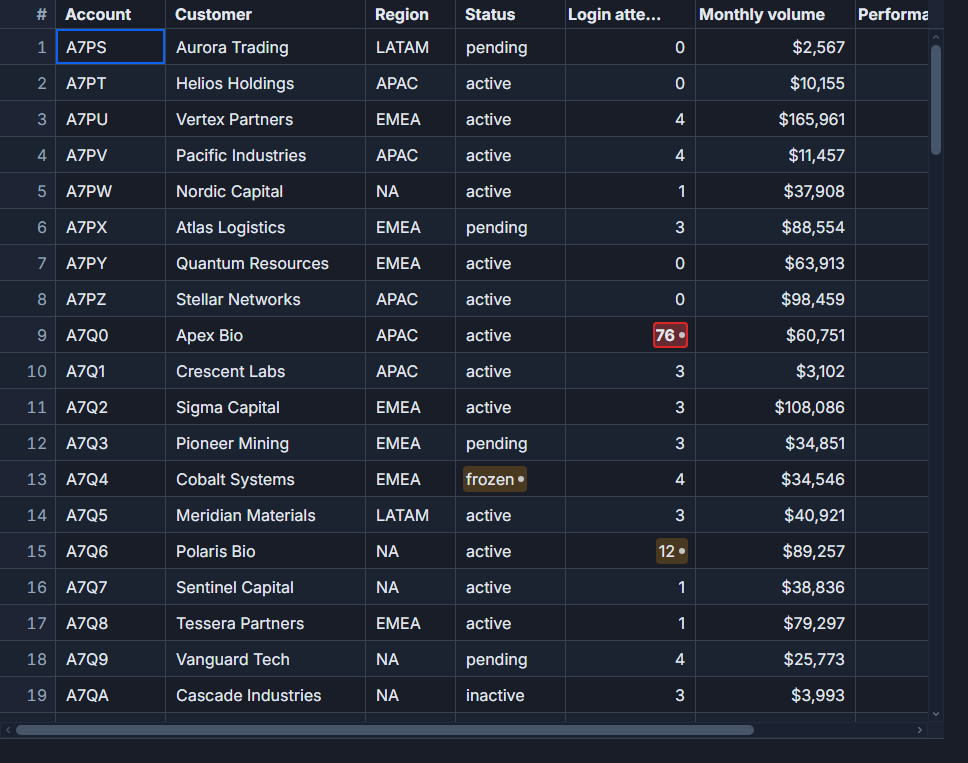 Threshold and anomaly highlighting applied to stock levels.
Column layout that works at a glance
The column order matters. SKU and product name go on the left and get pinned so they stay visible when scrolling right. Quantity columns - on hand, reserved, available - come next, right-aligned and formatted as integers. Then reorder level, status badge, and last-updated date on the right.
import SvGrid from '@svgrid/grid'
import type { ColumnDef } from '@svgrid/grid'

interface InventoryRow {
  sku: string
  product: string
  onHand: number
  reserved: number
  available: number
  reorderLevel: number
  status: 'in-stock' | 'low' | 'out'
  updatedAt: string
}

const columns: ColumnDef<InventoryRow>[] = [
  { id: 'sku', field: 'sku', header: 'SKU', width: 110, pinned: 'left' },
  { id: 'product', field: 'product', header: 'Product', width: 240, pinned: 'left' },
  { id: 'onHand', field: 'onHand', header: 'On Hand', width: 100, type: 'number', editable: true },
  { id: 'reserved', field: 'reserved', header: 'Reserved', width: 100, type: 'number' },
  { id: 'available', field: 'available', header: 'Available', width: 110, type: 'number',
    conditionalFormat: [
      { condition: ({ value }) => value <= 0, style: { color: '#dc2626', fontWeight: '700' } },
      { condition: ({ value, row }) => value > 0 && value <= (row as InventoryRow).reorderLevel,
        style: { color: '#d97706', fontWeight: '600' } },
    ]
  },
  { id: 'reorderLevel', field: 'reorderLevel', header: 'Reorder At', width: 110, type: 'number' },
  { id: 'status', field: 'status', header: 'Status', width: 100, cell: statusBadge },
  { id: 'updatedAt', field: 'updatedAt', header: 'Updated', width: 140, type: 'date' },
]
Pinning SKU and product means a user can scroll to the reserved/reorder columns without losing context. That's a small thing that warehouse staff will notice on day one.
Making low stock impossible to miss
Color alone is not enough - someone will always be working in a washed-out environment or have reduced color vision. The right approach combines a tinted row, a colored cell value, and a text badge that says "Low" or "Out" explicitly.
Row-level tinting comes from a rowClass function. Cell-level color comes from conditionalFormat (shown in the column def above). The status badge is a Svelte snippet that renders both a color dot and a text label.
<script lang="ts">
  import SvGrid from '@svgrid/grid'
  import type { InventoryRow } from './types'

  let { data, columns } = $props()

  function rowClass(row: InventoryRow): string {
    if (row.available <= 0) return 'row-out-of-stock'
    if (row.available <= row.reorderLevel) return 'row-low-stock'
    return ''
  }
</script>

{#snippet statusBadge({ value }: { value: string })}
  <span class="badge badge-{value}">
    {#if value === 'out'}<span class="dot dot-red" aria-hidden="true"></span>Out{/if}
    {#if value === 'low'}<span class="dot dot-amber" aria-hidden="true"></span>Low{/if}
    {#if value === 'in-stock'}<span class="dot dot-green" aria-hidden="true"></span>In Stock{/if}
  </span>
{/snippet}

<SvGrid
  {data}
  {columns}
  {rowClass}
  editable
  sortable
  filterable
  showFilterRow={true}
  enableCellSelection={true}
  rowHeight={34}
  onApiReady={(api) => { gridApi = api }}
/>

<style>
  :global(.row-out-of-stock) { background: #fef2f2; }
  :global(.row-low-stock) { background: #fffbeb; }
  .badge { display: inline-flex; align-items: center; gap: 5px; font-size: 0.8rem; }
  .dot { width: 7px; height: 7px; border-radius: 50%; display: inline-block; }
  .dot-red { background: #dc2626; }
  .dot-amber { background: #d97706; }
  .dot-green { background: #16a34a; }
</style>
The rowClass function is evaluated per row during render. Returning an empty string for in-stock rows means no extra DOM attribute to strip - it just skips the class entirely.
Inline editing that doesn't interrupt the workflow
The on-hand column is where edits happen. A warehouse worker receives a shipment, tabs to a row, hits a number, presses Enter, and expects the cursor to drop to the next row - exactly like a spreadsheet. SvGrid's default editing behavior handles that: Enter commits the edit and moves down, Escape cancels it.
For saves, I recommend optimistic updates rather than waiting on a network round-trip. Update the local row immediately, fire the API call in the background, and only revert if it fails. The grid's applyTransaction API is the right tool here.
import { createServerDataSource } from '@svgrid/grid'

async function handleCellEdit(event: { rowIndex: number; field: string; newValue: unknown; row: InventoryRow }) {
  const { rowIndex, field, newValue, row } = event

  // Optimistic: update local state immediately
  gridApi.applyTransaction({
    update: [{ ...row, [field]: newValue }]
  })

  // Derive status from the new available count
  const updated = { ...row, [field]: newValue }
  const newStatus = updated.available <= 0
    ? 'out'
    : updated.available <= updated.reorderLevel
    ? 'low'
    : 'in-stock'

  try {
    await fetch(`/api/inventory/${row.sku}`, {
      method: 'PATCH',
      headers: { 'Content-Type': 'application/json' },
      body: JSON.stringify({ [field]: newValue, status: newStatus }),
    })
  } catch {
    // Revert on failure
    gridApi.applyTransaction({ update: [row] })
  }
}
One thing to keep in mind: when on-hand changes, available usually changes too (available = on-hand - reserved). If that derived column isn't recalculated before the grid re-renders, you'll show stale data. Either compute it server-side and return the full updated row, or derive it inline in the edit handler before calling applyTransaction.
Undo/redo (api.undo() / api.redo()) is worth enabling too. Reconciliation errors happen when someone enters 120 instead of 12. Ctrl+Z is the fastest recovery path.
Bulk operations and filtering for action
The filter row is your friend in an inventory grid. Filtering by status = "low" or "out" lets a buyer see exactly what needs reordering - far more useful than scrolling through 4000 SKUs. Filtering by supplier or category narrows the list for a category manager doing a cycle count.
For bulk updates (marking a batch discontinued, applying a restock to a supplier's range), select the filtered rows and apply a transaction to all of them:
function markSelectedDiscontinued() {
  const selected = gridApi.getSelectedRows()
  const updates = selected.map(row => ({ ...row, status: 'out', reorderLevel: 0 }))
  gridApi.applyTransaction({ update: updates })
  // then POST to /api/inventory/bulk
}

function restockSelected(quantity: number) {
  const selected = gridApi.getSelectedRows()
  const updates = selected.map(row => ({
    ...row,
    onHand: row.onHand + quantity,
    available: row.available + quantity,
    status: (row.available + quantity) > row.reorderLevel ? 'in-stock' : 'low',
  }))
  gridApi.applyTransaction({ update: updates })
}
This pattern - filter to a meaningful subset, select all, apply a named operation - covers most of the bulk editing scenarios I've seen in practice.
CSV import for cycle counts
Physical inventory counts still come back as spreadsheets. The import flow I use: parse the CSV client-side with a small utility, match rows by SKU, compute the delta between counted and on-hand, then load into the grid for review before committing. The reviewer sees a diff - rows where the counted quantity diverges from the system quantity are tinted. Approving the diff calls applyTransaction with the updates.
For large catalogs (tens of thousands of SKUs), push filtering and sorting server-side with createServerDataSource. The client never needs to hold the full dataset:
import { createServerDataSource } from '@svgrid/grid'

const ds = createServerDataSource({
  fetch: async ({ page, pageSize, sort, filters }) => {
    const params = new URLSearchParams({
      page: String(page),
      size: String(pageSize),
      ...(sort?.[0] ? { sortField: sort[0].id, sortDir: sort[0].desc ? 'desc' : 'asc' } : {}),
    })
    filters.forEach(f => {
      params.set(`filter_${f.id}`, String(f.value))
    })
    const res = await fetch(`/api/inventory?${params}`)
    const json = await res.json()
    return { rows: json.items, total: json.total }
  }
})
Server-side paging with a 50-row page size keeps the initial load fast even for a catalog of 100k products. The filter row still works - it just drives server-side query parameters instead of client-side predicate functions.
What I'd prioritize for a first version
The order matters: get the column layout and low-stock highlighting right first, because those affect every session. Inline editing with optimistic saves comes next, because that's the core interaction. Bulk operations and CSV import can come in a later sprint - they're high-value but not every user needs them on day one.
The grid being fast matters more than it being feature-complete. Warehouse staff develop muscle memory. If the grid responds in under 50ms to a keypress, they'll trust it. If it hesitates on every edit, they'll go back to spreadsheets.