AI Smart Paste
Drop any shape of contact / lead / row data into a text area - CSV, TSV, JSON, vCard, Markdown table, an email signature block, or a single line of prose - and the parser maps it into typed rows your grid can insert or merge.
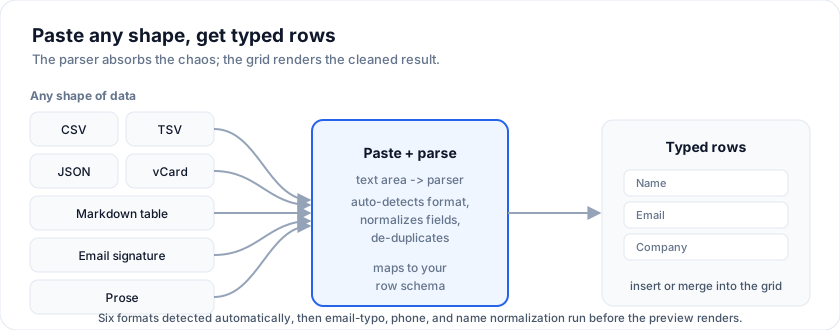
This is the demo your sales / customer-success / RevOps users want. Their day already has them pasting from Salesforce, Slack, Excel, business cards, and signature blocks; the parser absorbs the chaos and the grid renders the cleaned result.
What the parser handles
Six input formats are detected automatically, tried in this order:
| Format | Example trigger | Notes |
|---|---|---|
| vCard | BEGIN:VCARD |
RFC 6350. iOS / macOS / Google Contacts export. |
| Markdown table | Lines starting/ending with ` | , with a ---` separator |
| JSON | Input starts with [ or { |
Any field names; multi-language matched. |
| CSV / TSV / PSV | Consistent tab / comma / semicolon / pipe delimiter | Multi-language headers (Nom, Téléphone etc). |
| Signature blocks | Multi-line blocks separated by blank lines containing an email | Name <email> form, "Role, Company" lines. |
| Free-form prose | Anything else, one line per record | Extracts by signal (email regex, phone regex). |
On top of detection, every parsed row goes through three normalization passes before the preview panel renders it:
- Email typo correction - common domain typos (
gmial.com,gmail.con,gosling.con) are auto-fixed and surfaced as an info note on the row. - Phone normalization - any phone is rewritten to a consistent
+CC AAA BBB CCCCshape (US, UK, DE, FR, JP recognized; 10-digit bare numbers assumed North American). - Name cleaning - titles (
Dr.,Prof.,Mr.) and suffixes (Jr.,III,PhD) are stripped;"Last, First"is rewritten to"First Last".
Duplicate detection runs last: rows with the same normalized email collapse into one, with missing fields merged from the duplicate.
Complete drop-in example
A minimal contact list with the Smart Paste panel above the grid. Paste any of the formats below into the textarea and click Parse with AI.
<script lang="ts">
  import {
    SvGrid,
    tableFeatures,
    rowSortingFeature,
    rowSelectionFeature,
    type ColumnDef,
    type SvGridApi,
  } from '@svgrid/grid'

  type Contact = {
    id: string
    fullName: string
    email: string
    company: string
    role: string
    phone: string
  }

  let rows = $state<Contact[]>([
    { id: 'c1', fullName: 'Ada Lovelace',   email: '[email protected]', company: 'Analytic Engine',  role: 'Founder',    phone: '+44 20 1234 5678' },
    { id: 'c2', fullName: 'Linus Torvalds', email: '[email protected]',    company: 'Linux Foundation', role: 'Maintainer', phone: '+1 503 555 0101' },
  ])

  const features = tableFeatures({ rowSortingFeature, rowSelectionFeature })
  let api = $state<SvGridApi<typeof features, Contact> | null>(null)

  let pasteText = $state('')
  let parsed = $state<Contact[]>([])

  // The real parser is bundled in demo 75. This stub does just CSV +
  // semicolon detection; swap with `assistant(text)` from the demo to
  // get the full feature set.
  async function parse(text: string): Promise<Contact[]> {
    const delim = text.includes('\t') ? '\t'
                : text.includes(';')  ? ';'
                : ','
    return text.trim().split('\n').map((line, i) => {
      const cells = line.split(delim).map((c) => c.trim())
      return {
        id: `paste-${i}`,
        fullName: cells[0] ?? '',
        email:    cells[1] ?? '',
        company:  cells[2] ?? '',
        role:     cells[3] ?? '',
        phone:    cells[4] ?? '',
      }
    })
  }

  async function runParse() {
    parsed = await parse(pasteText)
  }

  function applyAll() {
    if (!api || parsed.length === 0) return
    api.addRows(parsed)
    parsed = []
    pasteText = ''
  }

  const columns: ColumnDef<typeof features, Contact>[] = [
    { field: 'fullName', header: 'Name',    editorType: 'text', width: 180 },
    { field: 'email',    header: 'Email',   editorType: 'text', width: 220 },
    { field: 'company',  header: 'Company', editorType: 'text', width: 180 },
    { field: 'role',     header: 'Role',    editorType: 'text', width: 160 },
    { field: 'phone',    header: 'Phone',   editorType: 'text', width: 160 },
  ]
</script>

<section style="display: flex; flex-direction: column; gap: 12px; height: 100%;">
  <textarea
    bind:value={pasteText}
    placeholder="Paste CSV / TSV / JSON / vCard / Markdown / signature blocks here…"
    rows="4"
    style="width: 100%; font-family: ui-monospace, Menlo, monospace; padding: 10px; border-radius: 8px; border: 1px solid #cbd5e1;"
  ></textarea>

  <div style="display: flex; gap: 8px;">
    <button onclick={runParse}>✨ Parse with AI</button>
    <button onclick={applyAll} disabled={parsed.length === 0}>
      Apply {parsed.length} row{parsed.length === 1 ? '' : 's'}
    </button>
  </div>

  {#if parsed.length > 0}
    <div style="border: 1px solid #cbd5e1; border-radius: 8px; padding: 10px;">
      <strong>Preview:</strong>
      <ul>
        {#each parsed as p (p.id)}
          <li>{p.fullName} · {p.email} · {p.company}</li>
        {/each}
      </ul>
    </div>
  {/if}

  <div style="flex: 1; min-height: 0;">
    <SvGrid
      data={rows}
      columns={columns}
      features={features}
      containerHeight="100%"
      onApiReady={(next) => (api = next)}
    />
  </div>
</section>
For the full parser (vCard, Markdown table, signature blocks,
multi-language headers, typo correction, phone normalization,
de-duplication), read the assistant() implementation in demo 75
and copy it verbatim - the parser is 350 lines of pure TypeScript with
no library dependencies.
Try these input formats
Each one runs through the parser and produces 2-3 rows in the preview panel.
vCard
BEGIN:VCARD
VERSION:3.0
FN:Brendan Eich
ORG:Brave Software
TITLE:CEO
EMAIL;TYPE=WORK:[email protected]
TEL;TYPE=CELL:+1 415 555 0188
END:VCARD
BEGIN:VCARD
VERSION:3.0
FN:Anders Hejlsberg
ORG:Microsoft
TITLE:Technical Fellow
EMAIL;TYPE=WORK:[email protected]
TEL;TYPE=WORK:+1 425 555 0177
END:VCARD
Markdown table with multi-language headers
| Name | Email | Company | Rol | Téléphone |
|---|---|---|---|---|
| Grace Hopper | [email protected] | US Navy | Rear Admiral | +1 202 555 0133 |
| Ken Thompson | [email protected] | Bell Labs | Researcher | +1 908 555 0124 |
Email signature blocks
Donald E. Knuth <[email protected]>
Professor Emeritus, Stanford University
Phone: (650) 555-0111

Barbara Liskov <[email protected]>
Institute Professor at MIT CSAIL
Cell: +1.617.555.0142
Messy real-world paste
Title prefixes, "Last, First" inversion, email typo, and varied phone formats - the parser cleans every field:
Dr. Margaret Rhodes; [email protected]; Rhodes Capital LLC; Managing Partner; (212) 555-0188
Wirth, Niklaus; [email protected]; ETH Zurich; Professor Emeritus; +41 44 555 0166
"James Gosling" <[email protected]>; Amazon Web Services; Distinguished Engineer; 1-415-555-0177
After parsing:
Dr. Margaret Rhodes→Margaret RhodesWirth, Niklaus→Niklaus Wirthgmial.com→gmail.com(logged asFixed domain typo → gmail.com)gosling.con→gosling.com(same)(212) 555-0188→+1 212 555 01881-415-555-0177→+1 415 555 0177
Swapping in a real LLM
The bundled assistant() is fully deterministic and runs in the
browser. To route through a real model instead - GPT, Claude,
Gemini, Llama on your infra - replace the assistant() body with:
async function assistant(text: string): Promise<{ rows: ParsedRow[]; log: string[] }> {
  const res = await fetch('/api/smart-paste', {
    method: 'POST',
    headers: { 'content-type': 'application/json' },
    body: JSON.stringify({ text }),
  })
  if (!res.ok) throw new Error(`Parser failed: ${res.status}`)
  return res.json() as Promise<{ rows: ParsedRow[]; log: string[] }>
}
On the server side, the model receives the raw paste and a schema for
ParsedRow, and returns the same shape. Useful when you need:
- Domain-specific extraction (medical, legal, financial)
- A model with knowledge of your CRM's record shapes
- Audit logging of every paste for compliance
The bundled parser stays the deterministic fallback - call it client-side when the network call fails or for the 90% of cases that don't need a model.
Pasting a block of cells
Copy a rectangle from a spreadsheet and paste it onto a cell - the grid maps the block from the anchor outward. Select a range and copy, and it goes back out as TSV, which is what a spreadsheet expects.
<script lang="ts">
  import { SvGrid, type GridColumns } from '@svgrid/grid'

  type Person = {
    id: number
    name: string
    city: string
    age: number
    salary: number
  }

  const seed: Person[] = [
    { id: 1, name: 'Ada Lovelace',   city: 'London',   age: 36, salary: 142000 },
    { id: 2, name: 'Grace Hopper',   city: 'New York', age: 45, salary: 168000 },
    { id: 3, name: 'Linus Torvalds', city: 'Portland', age: 54, salary: 155000 },
  ]

  let rows = $state<Person[]>(seed.map((p) => ({ ...p })))

  const columns: GridColumns<Person> = [
    { field: 'name',   header: 'Name',   width: 180, editorType: 'text' },
    { field: 'city',   header: 'City',   width: 150, editorType: 'text' },
    { field: 'age',    header: 'Age',    width: 90,  editorType: 'number' },
    { field: 'salary', header: 'Salary', width: 140, editorType: 'number' },
  ]
</script>

<SvGrid data={rows} {columns} editable enableCellSelection />
See also
- Demo 75 - AI Smart Paste - the full parser, 5 sample tiles, preview panel, per-row insert/update/skip control, commit through
api.setCellValue - AI assistant - the
api.ai.filter,api.ai.smartFill,api.ai.summarize,api.ai.classifyhelpers - Import - file picker for xlsx / csv / tsv / json
Related articles
- Paste from Excel into a Svelte Data Grid - How to wire up clipboard paste so users can drop a copied Excel or Google Sheets block directly into SvGrid - TSV parsing, type coercion, validation, and row growth all covered.
- 15 Years of UI Components - The Story Behind jQWidgets and Smart UI - How a team spent 15 years shipping data grids - from jQuery widgets in 2011 to web components to a Svelte 5 native grid - and what actually changed each time.
- Smart UI Wins Gold in the 2025 Visual Studio Magazine Readers' Choice Awards - Smart UI, the web-components suite from the team behind SvGrid, earned Gold in the 2025 Visual Studio Magazine Readers' Choice Awards. Here is what that vote actually tells you about the codebase you are running.