Data import - Enterprise
The sister to data export and printing. Read an Excel file, CSV/TSV blob, or JSON array in the browser and produce a typed preview of every parsed row - including per-cell validation errors - before any data lands in the grid. Ships in the paid @svgrid/enterprise add-on.
For the import built step by step on inline text, then through the dialog, see Import: a spreadsheet into the grid; this page is the reference.
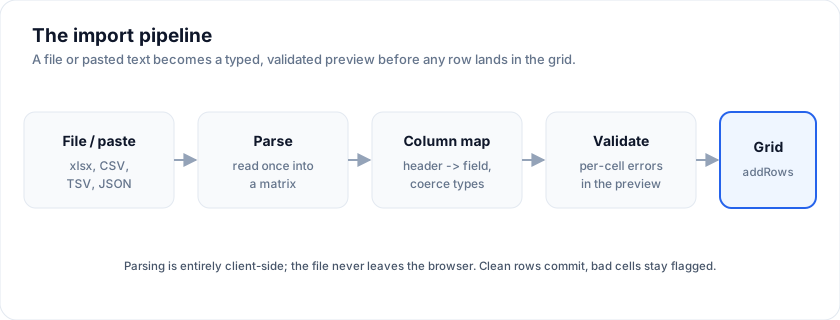
Click Preview from text below to run the bundled sample through the parser + validator, then Commit to push the clean rows into the grid:
Open the live example: Excel / CSV import (Data Export & Import)
What it is
installEnterprise(api) adds one async method to your SvGridApi:
api.importData(opts): Promise<ImportResult<TData>>
The call:
- Parses the file or text into a typed row set.
- Maps source columns to your grid's fields via an optional
columnMap. - Runs each row through your validator (if you give one).
- Either returns the result for you to preview, or commits the
rows into the grid via
api.addRows(...)whencommit: true.
The grid never tries to be a full Excel reader; it handles the shape Excel, Numbers, Google Sheets, and Apache POI produce by default. For exotic features (pivot tables embedded in the file, multi-sheet workbooks, conditional formatting), pre-process server-side and feed the result through this API.
When to use it
- Onboarding flows where customers upload a spreadsheet to seed the app.
- Bulk edit workflows where the user downloads a CSV via
api.exportData(...), edits in Excel, and re-uploads. - Pipeline integrations where another tool dumps an xlsx and your app surfaces it for review.
If you control the file format end-to-end and just need server -> grid
data, skip the importer and call api.addRows(...) directly with the
parsed rows. The importer's value is in the review UX -
column-mapping, validation, error preview - not the parser itself.
Minimal example
<script lang="ts">
  import { SvGrid, tableFeatures, rowSortingFeature, type SvGridApi, type ColumnDef } from '@svgrid/grid'
  import { installEnterprise, type EnterpriseGridApi } from '@svgrid/enterprise'

  // No key needed to try it (a watermark shows). After you buy, call
  // setLicenseKey(yourKey) once at startup.

  type Order = { orderId: number; customer: string; total: number }
  let rows = $state<Order[]>([])
  let api = $state<EnterpriseGridApi<typeof features, Order> | null>(null)

  const features = tableFeatures({ rowSortingFeature })
  const columns: ColumnDef<typeof features, Order>[] = [
    { field: 'orderId',  header: 'Order ID' },
    { field: 'customer', header: 'Customer' },
    { field: 'total',    header: 'Total', format: { type: 'currency', currency: 'USD' } },
  ]

  async function onFile(e: Event) {
    const file = (e.currentTarget as HTMLInputElement).files?.[0]
    if (!file || !api) return
    const result = await api.importData({
      file,
      format: 'auto',
      columnMap: { 'Order #': 'orderId', 'Customer Name': 'customer', 'Total': 'total' },
      validator: (row) => {
        const errs = []
        if (!row.orderId) errs.push({ field: 'orderId', message: 'required' })
        if (row.total < 0) errs.push({ field: 'total', message: 'must be >= 0' })
        return errs
      },
    })
    if (result.errors.length === 0) {
      api.addRows(result.rows, 'bottom')
    } else {
      // Render result.errors in your UI for the user to fix.
      console.warn(result.errors)
    }
  }
</script>

<input type="file" accept=".xlsx,.csv,.tsv,.json" onchange={onFile} />
<SvGrid
  data={rows}
  columns={columns}
  features={features}
  onApiReady={(next) => (api = installEnterprise(next))}
/>
The drop-in dialog: SvImportDialog
importData is the engine; SvImportDialog is the finished UI around
it - the import-side mirror of SvExportMenu.
Give it your api and it handles the whole review flow: drag-drop or
paste, grid-aware auto-mapping, typed preview, per-cell error
highlighting, and the commit into the grid.
<script lang="ts">
  import { SvImportDialog, installEnterprise, type EnterpriseGridApi } from '@svgrid/enterprise'
  let api = $state<EnterpriseGridApi<typeof features, Order> | null>(null)
</script>

<SvImportDialog
  {api}
  onImported={(r) => console.log(`imported ${r.rows.length} rows`)}
/>
<SvGrid data={rows} columns={columns} features={features}
  onApiReady={(next) => (api = installEnterprise(next))} />
That's the whole integration. The dialog:
Reads the file once and re-maps instantly as you retarget columns (parsing an xlsx never repeats on a mapping change).
Auto-maps the file's headers to your grid's columns by matching header labels and field names case- and spacing-insensitively, so
Unit Price,unit_price, andUnitPriceall find a column labelledUnit price. Headers with no confident match start unmapped - one click on their select retargets them.Infers types from your columns'
format: acurrency/number/percentcolumn coerces"$1,234"to1234; adatecolumn coerces to an ISO date. Cells that won't convert are flagged in the preview and keep their raw text (or block the import whenstrictis set).Previews the typed rows with bad cells highlighted, then commits.
Configures + creates columns for new fields. A header mapped to "Import as new field" opens an inline column configurator:
- Name - the column header.
- Kind - Text / Number / Integer / Currency / Percent /
Boolean / Date / Date & time / Dropdown / JSON. The kind drives the
value coercion and the created column's
format+ inline editor (Currency ->$number editor, Percent ->%, Date -> date picker, Boolean -> checkbox, Dropdown ->selecteditor). - Visible - hide the column (
visible: false) while still importing its data. - Dropdown options (Dropdown kind) - a comma-separated list; leave it blank to auto-populate from the distinct values in the imported column.
On commit each new column is created via
api.addColumn(...). So importing a CSV into an empty grid lets you define the whole schema - names, types, formatting, dropdowns, visibility - as you map. Turn column creation off withcreateColumns={false}.Append or replace. The footer has an Append / Replace all toggle. Append adds the rows (
api.addRows); Replace clears the grid's existing rows and swaps in the imported set (api.applyTransaction), still creating any missing columns. Hide the toggle withallowReplace={false}, or set the initial mode withdefaultMode="replace".Replace columns too. In Replace mode a Replace columns checkbox appears; tick it and the commit also removes grid columns the file doesn't have (
api.removeColumn), so the grid matches the import exactly - data and columns. Left unticked (the default), existing columns are kept. Hide the checkbox withallowColumnPrune={false}.
Both write through the grid's imperative api, so the grid updates
immediately. If your app keeps its own copy of the data (a store, a DB),
use the onImported({ rows }) callback to push the imported rows into that
source too.
Props: api, label, title, commitAt, createColumns, allowReplace,
defaultMode, allowColumnPrune, accept, previewRows, strict,
validator, maxBytes, maxRows, overLimit, maxErrors, dedupeBy,
encoding, onImported.
Styling uses the same overridable CSS variables (--sg-border, --sg-bg,
--sg-fg, --site-accent, ...) as the rest of the suite.
Open the live example: Import - dialog + auto-mapping (Data Export & Import)
Building your own UI
If you want a custom importer, the same parse-once / map-many split is exported so you don't re-read the file on every keystroke:
import { readImportMatrix, mapImportMatrixAsync, autoMapColumns, inferImportColumnTypes } from '@svgrid/enterprise'

const { format, matrix } = await readImportMatrix(file, 'auto', { maxBytes }) // parse once
const headers = matrix[0]
const columnMap = autoMapColumns(headers, api.getColumns())      // grid-aware guess
const columnTypes = inferImportColumnTypes(api.getColumns())     // types from format
const { rows, errors } = await mapImportMatrixAsync(matrix, {    // chunked, cancelable
  columnMap, columnTypes, signal, onProgress: (p) => (progress = p.ratio),
})
(There's a synchronous mapImportMatrix with the same signature for small
data / tests.)
Supported formats
| Format | Source type | Peer dependency | Notes |
|---|---|---|---|
xlsx |
File / Blob |
jszip |
First sheet only. Strings, numbers, booleans, dates as ISO strings. |
csv |
File / Blob / string |
none | RFC 4180-ish: quoted fields, embedded newlines, escaped quotes. |
tsv |
File / Blob / string |
none | Same as CSV with \t as separator. |
json |
File / Blob / string |
none | Top-level array of objects. Column union taken across first ~50 rows. |
auto |
any | maybe jszip |
Format is sniffed from file extension or first character of text. |
The xlsx parser shares the jszip peer dependency with xlsx export, so
if you already export to Excel you don't add a second peer for import.
Column mapping
Pass a columnMap from source header to target field:
await api.importData({
  file,
  columnMap: {
    'Order #':       'orderId',     // rename
    'Customer Name': 'customer',
    'Customer Email': 'email',
    'Internal Note': null,           // drop this column entirely
  },
})
Source headers not listed in columnMap fall through to a default
mapping: lowercase + collapse whitespace to underscores + strip
non-alphanumerics. So "Order ID" becomes order_id. If that's not
what you want, list it explicitly.
Set a column's map entry to null to drop it from the parsed rows
entirely - useful for stripping PII you don't want to land in the
client-side grid.
Auto-mapping
Pass autoMap: true to skip the hand-written map entirely. The importer
reads your grid's columns and matches each source header to a field by
header label first, then field name - case- and spacing-insensitive, so
"Unit Price", "unit_price", and "UnitPrice" all find a unitPrice
column. It also infers columnTypes from each column's format
(currency / number / percent -> number, date -> ISO date). Anything you
pass explicitly in columnMap / columnTypes still wins over the guess:
await api.importData({ file, autoMap: true })                       // fully automatic
await api.importData({ file, autoMap: true, columnMap: { SKU: 'code' } }) // guess + one override
This is exactly what SvImportDialog uses to line a dropped file up with
your grid before you touch a single select.
Type coercion
The parser walks every cell value through a small set of regex-based heuristics:
| Source value | Becomes |
|---|---|
true / false |
boolean |
123, -45.6, 1e3 |
number |
$1,234.56 |
1234.56 |
"1,234,567" |
1234567 |
2024-03-15 |
string (ISO date) |
2024-03-15T12:30:00Z |
string (ISO datetime) |
| empty cell | '' |
The grid columns then apply their own format / parsing on top. If you
want fully strict types, run them through your validator and reject
anything that didn't coerce the way you expected.
Validation
Validators receive each parsed row plus its index. Return an array of
{ field, message } errors:
function validator(row: Order, rowIndex: number) {
  const errs = []
  if (row.total < 0) errs.push({ field: 'total', message: 'must be >= 0' })
  if (!/^[^\s@]+@[^\s@]+\.[^\s@]+$/.test(row.email))
    errs.push({ field: 'email', message: 'invalid email' })
  return errs
}
The errors land in result.errors with rowIndex (0-based in the
output, excluding the header row) and field so your preview UX can
highlight the offending cell.
Preview vs commit
The default is preview: you get { headers, rows, errors, skipped, total, format } back and decide what to do.
Pass commit: true to skip the preview and append the rows directly,
with an optional commitAt ('top' | 'bottom' | numeric index). If
there are any validator errors, commit: true silently refuses to
write - your UI should always render result.errors regardless.
const r = await api.importData({ file, commit: true, commitAt: 'top' })
if (r.errors.length > 0) {
  // The commit was skipped. Re-render the import dialog with errors.
}
Production guard-rails (Enterprise)
Untrusted uploads need bounds. importData (and SvImportDialog) take a
set of options that keep a hostile or oversized file from locking up the
tab or exhausting memory:
| Option | Effect |
|---|---|
maxBytes |
Reject a File/Blob larger than N bytes before it is read. |
maxRows |
Cap on data rows (enforced before the O(rows) mapping). |
overLimit |
Past maxRows: 'reject' (default, throws) or 'truncate' (keep first N, set truncated). |
maxErrors |
Stop collecting validation errors past N (errorsTruncated flags it). |
encoding |
Decode CSV/TSV/JSON with a non-UTF-8 charset ('windows-1252', ...). |
signal |
An AbortSignal to cancel a long parse/map (throws an AbortError). |
onProgress |
({ phase, ratio, done, total }) => void for a progress bar. |
dedupeBy |
Drop duplicate rows by a target field, keeping the last occurrence. |
const controller = new AbortController()
const r = await api.importData({
  file,
  autoMap: true,
  maxBytes: 25 * 1024 * 1024,   // 25 MB
  maxRows: 200_000,
  maxErrors: 500,
  dedupeBy: 'orderId',
  signal: controller.signal,
  onProgress: ({ ratio }) => (progress = ratio),
})
SvImportDialog surfaces the same knobs as props (maxBytes defaults to
25 MB, maxErrors to 500), validates the file type / size before reading,
maps on a chunked non-blocking loop with a progress bar + Cancel, and
never freezes the tab on a large file.
Security
- Prototype pollution is blocked. Source headers (or JSON keys) named
__proto__,constructor, orprototypeare dropped, never assigned - so a crafted file can't walk the prototype chain. Blank headers are dropped too. - Nothing is uploaded. Parsing is entirely client-side; the file never leaves the browser.
- The xlsx reader is values-only. It doesn't resolve external references or expand XML entities, so it isn't a billion-laughs / XXE vector.
For files beyond a few hundred thousand rows, still prefer a server-side ingest - the guard-rails keep the client safe, but a dedicated backend parser is the right home for truly large jobs.
Result shape
type ImportResult<TData> = {
  headers: string[]      // source headers verbatim
  rows: TData[]          // parsed, mapped, type-coerced rows
  errors: Array<{ rowIndex: number; field: string; message: string }>
  skipped: number        // rows skipped because they were entirely blank
  total: number          // total source rows (incl. blanks + bad rows)
  format: 'xlsx' | 'csv' | 'tsv' | 'json'
  errorsTruncated?: boolean // maxErrors capped the list
  deduped?: number          // rows dropped by dedupeBy
  truncated?: boolean       // maxRows + overLimit:'truncate' dropped trailing rows
}
Note overLimit:'truncate' keeps total at the original source row
count, so you can report "imported rows.length of total". maxBytes
always rejects - a partial binary/CSV can't be truncated safely.
Performance
The browser-side parser is O(file size). It walks the bytes once, no
regex backtracking, and pays one JSON.parse for JSON imports. For
files up to ~100k rows the parse + validate cycle stays under a few
hundred milliseconds on a typical laptop.
The mapping stage (mapImportMatrixAsync, used by importData and
the dialog) runs in chunks and yields to the event loop between them, so
even a 100k-row re-map keeps the tab responsive and drives the progress
bar. Use the synchronous mapImportMatrix for small data or unit tests.
For larger files (>500k rows) we recommend a server-side ingest:
upload the file, stream it through your parser, and emit the result
back via the same addRows call. The importer's review UX still works
- just call it on a sample slice first.
Gotchas
- First sheet only. xlsx imports return rows from
sheet1.xml. Pick the right sheet server-side or convert the workbook before upload. - No formulas. Cached formula values are read when present, but the parser doesn't evaluate uncached formulas.
- No styles, comments, conditional formatting. Just values.
- Blank rows are skipped. A row whose every cell is empty is
counted in
skipped, notrows.
Frequently asked questions
How do I import an Excel or CSV file into the grid?
With @svgrid/enterprise, read an xlsx file, CSV/TSV blob, or JSON array in the browser
and get a typed preview of every parsed row - including per-cell validation
errors - before any data lands in the grid. Nothing is uploaded; parsing happens
client-side.
Does import validate the data?
Yes. Each parsed row runs through the same validator shape used for inline editing, so you can surface per-cell errors in the preview and let the user fix them before committing.
Is import free?
No. Import ships in @svgrid/enterprise, alongside export and pivot. The free
Community package handles displaying and editing data you already have in
memory.
See also
- Data export and printing - the round-trip partner.
- Validation while editing - the same validator shape works for inline grid edits.
- Demo 53 - Excel / CSV import - the low-level
importData+ validator flow. - Demo 204 - Import dialog + auto-mapping - the
drop-in
SvImportDialogwith drag-drop, paste, and grid-aware mapping.
Live examples
- Excel / CSV import - File picker + column mapping + per-row validation preview before commit. Reads xlsx / csv / tsv / json with format auto-detect.
- Import - dialog + auto-mapping - The round-trip partner of export: SvImportDialog drops in a drag-drop / paste importer that auto-maps a file's headers to your columns, coerces each value with the column's own format, previews the typed rows with bad cells flagged, then appends the clean ones. Reads .xlsx, CSV, TSV, JSON.
Related articles
- Importing CSV into a Svelte Data Grid - Parse a user-uploaded CSV file into objects, map its headers to grid columns, validate rows before committing, and handle the edge cases that actually bite you in production.