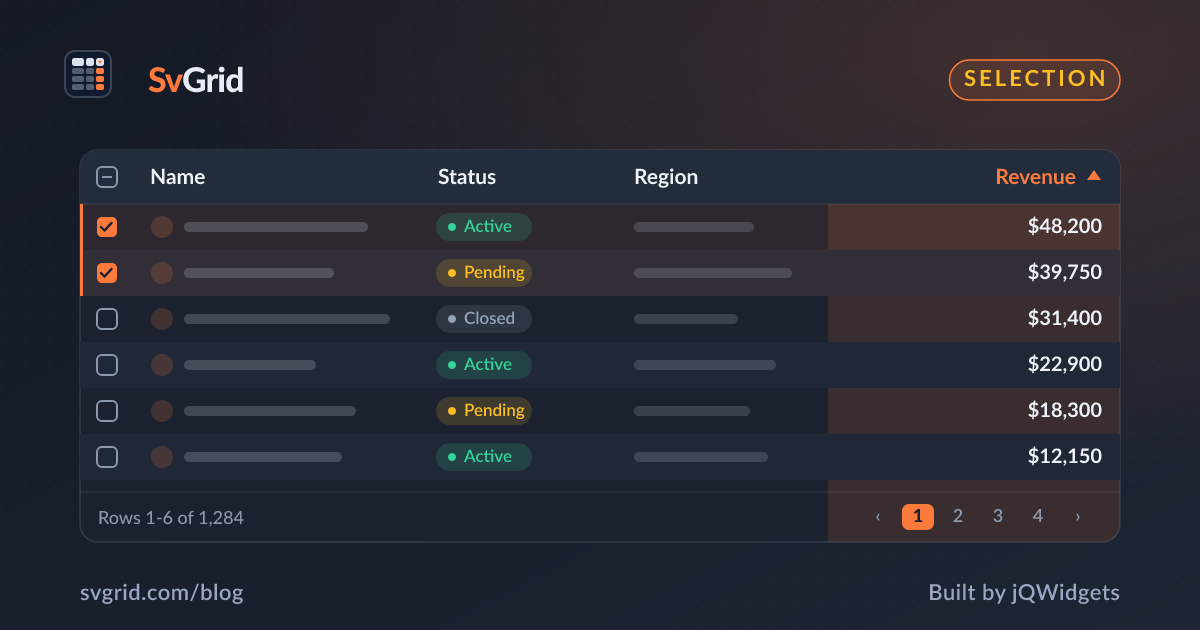
Row Selection and Clipboard Copy-Paste in SvGrid
How checkbox row selection, cell range copy, and Excel-compatible clipboard output work together in SvGrid - with a full working example.
Analysts who live in spreadsheets expect two things from a data grid: they want to click rows to drive bulk actions, and they want to select a block of cells, press Ctrl+C, and have the result paste cleanly into Excel without reformatting. SvGrid handles both through rowSelectionFeature and built-in clipboard serialization, and they compose without interfering with each other.
Two selection modes, one feature
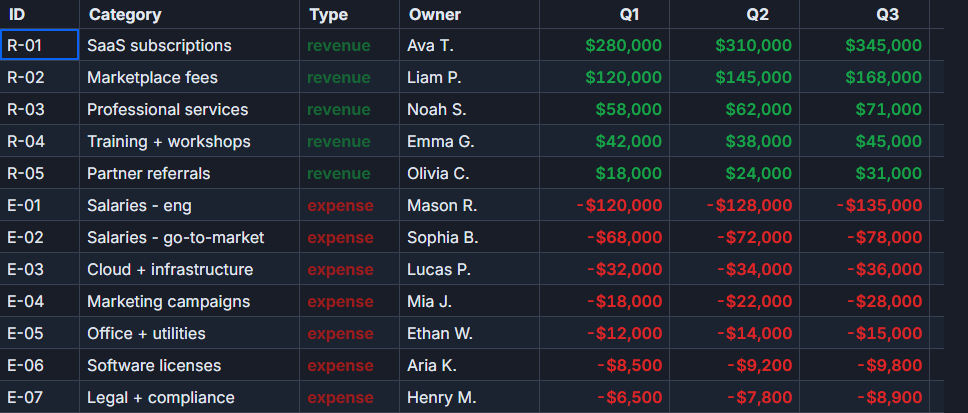
Row selection and cell range selection are distinct affordances in SvGrid. Row selection - the checkbox column, Shift+click extension, header toggle - is driven by rowSelectionFeature. Cell range selection - drag, Shift+arrow, Ctrl+C - is always available and does not require a separate feature flag.
Combining them in tableFeatures before you write columns is the only required setup step. The order in tableFeatures matters at the TypeScript level because the returned object is what parameterizes ColumnDef and SvGridApi:
import {
  tableFeatures,
  rowSortingFeature,
  rowSelectionFeature,
  type ColumnDef,
} from '@svgrid/grid'

type Employee = {
  id: string
  firstName: string
  lastName: string
  department: string
  country: string
  age: number
  salary: number
  performance: number
}

export const features = tableFeatures({
  rowSortingFeature,
  rowSelectionFeature,
})

export const columns: ColumnDef<typeof features, Employee>[] = [
  { field: 'firstName',   header: 'First name',  editorType: 'text'   },
  { field: 'lastName',    header: 'Last name',   editorType: 'text'   },
  { field: 'department',  header: 'Department',  editorType: 'text'   },
  { field: 'country',     header: 'Country',     editorType: 'text'   },
  { field: 'age',         header: 'Age',         editorType: 'number' },
  {
    field: 'salary',
    header: 'Salary',
    editorType: 'number',
    format: {
      type: 'currency',
      currency: 'USD',
      options: { maximumFractionDigits: 0 },
    },
  },
  { field: 'performance', header: 'Performance', editorType: 'number' },
]
The format config on the salary column controls rendered cell text only. When the user copies a cell range, SvGrid writes raw values to the clipboard - 125000, not $125,000. That is intentional: the spreadsheet receiving the paste should apply its own number format rather than having to parse pre-formatted strings.
A working toolbar driven by selection state
The pattern most teams land on is a reactive toolbar that appears only when rows are checked. onRowSelectionChange gives you the current array of selected row objects every time selection changes. Feed that into a $state variable and derive aggregates from it - no polling, no subscriptions.
<script lang="ts">
  import {
    SvGrid,
    tableFeatures,
    rowSortingFeature,
    rowSelectionFeature,
    type ColumnDef,
    type SvGridApi,
  } from '@svgrid/grid'

  type Employee = {
    id: string
    firstName: string
    lastName: string
    department: string
    country: string
    age: number
    salary: number
    performance: number
  }

  // Deterministic seed data - 80 rows, no network needed
  const FIRST  = ['Alice','Bob','Carol','Dan','Eva','Frank','Grace','Hiro','Isla','Jules']
  const LAST   = ['Smith','Jones','Lee','Park','Khan','Silva','Tran','Diaz','Nair','Wu']
  const DEPTS  = ['Engineering','Design','Sales','Finance','HR','Legal']
  const CTRIES = ['US','UK','DE','JP','IN','BR','CA','AU']

  let seed = 0xBEEF42
  function rnd() { seed = (seed * 1664525 + 1013904223) >>> 0; return seed / 0xFFFFFFFF }
  function pick<T>(a: T[]): T { return a[Math.floor(rnd() * a.length)]! }

  const rows: Employee[] = Array.from({ length: 80 }, (_, i) => ({
    id:          `EMP-${i + 1}`,
    firstName:   pick(FIRST),
    lastName:    pick(LAST),
    department:  pick(DEPTS),
    country:     pick(CTRIES),
    age:         25 + Math.floor(rnd() * 35),
    salary:      Math.round((50_000 + rnd() * 150_000) / 1000) * 1000,
    performance: Math.round(rnd() * 100),
  }))

  const features = tableFeatures({ rowSortingFeature, rowSelectionFeature })

  const columns: ColumnDef<typeof features, Employee>[] = [
    { field: 'firstName',   header: 'First name',  editorType: 'text'   },
    { field: 'lastName',    header: 'Last name',   editorType: 'text'   },
    { field: 'department',  header: 'Department',  editorType: 'text'   },
    { field: 'country',     header: 'Country',     editorType: 'text'   },
    { field: 'age',         header: 'Age',         editorType: 'number' },
    {
      field: 'salary',
      header: 'Salary',
      editorType: 'number',
      format: { type: 'currency', currency: 'USD', options: { maximumFractionDigits: 0 } },
    },
    { field: 'performance', header: 'Performance', editorType: 'number' },
  ]

  let api = $state<SvGridApi<typeof features, Employee> | null>(null)
  let selectedRows = $state<Employee[]>([])

  const stats = $derived.by(() => {
    const count = selectedRows.length
    const sumSalary = selectedRows.reduce((s, r) => s + r.salary, 0)
    const avgPerf   = count
      ? Math.round(selectedRows.reduce((s, r) => s + r.performance, 0) / count)
      : 0
    return { count, sumSalary, avgPerf }
  })

  const currencyFmt = new Intl.NumberFormat('en-US', {
    style: 'currency', currency: 'USD', maximumFractionDigits: 0,
  })

  function archiveSelected() {
    const ids = api?.getSelectedRowIds() ?? []
    console.log('archiving', ids)
    api?.clearRowSelection()
  }

  function exportSelected() {
    const data = api?.getSelectedRows() ?? []
    const lines = [
      'First name\tLast name\tDepartment\tSalary',
      ...data.map(r => `${r.firstName}\t${r.lastName}\t${r.department}\t${r.salary}`),
    ]
    const blob = new Blob([lines.join('\n')], { type: 'text/tab-separated-values' })
    const url  = URL.createObjectURL(blob)
    const a    = Object.assign(document.createElement('a'), { href: url, download: 'export.tsv' })
    a.click()
    URL.revokeObjectURL(url)
  }
</script>

{#if stats.count > 0}
  <div class="toolbar">
    <span>
      {stats.count} selected -
      total salary {currencyFmt.format(stats.sumSalary)} -
      avg performance {stats.avgPerf}
    </span>
    <button onclick={archiveSelected}>Archive</button>
    <button onclick={exportSelected}>Export TSV</button>
    <button onclick={() => api?.clearRowSelection()}>Clear</button>
  </div>
{/if}

<SvGrid
  {features}
  {columns}
  data={rows}
  rowSelection="multiple"
  onApiReady={(g) => { api = g }}
  onRowSelectionChange={(r) => { selectedRows = r }}
  style="height: 520px;"
/>
A few things to notice. selectedRows is a plain $state variable; $derived.by computes the aggregates from it on every change. The toolbar conditionally renders on stats.count > 0, so it appears and disappears automatically. archiveSelected calls api.clearRowSelection() after logging the IDs, which is safe inside a button handler. Calling it inside onRowSelectionChange would create a loop.
What happens when you press Ctrl+C
When a cell range is active and the user presses Ctrl+C, SvGrid calls navigator.clipboard.writeText with a tab-separated string - tabs between columns, newlines between rows. The value for each cell comes from the raw data model, not the rendered cell content. So a salary column formatted as $125,000 pastes as 125000.
Row selection and cell range copy are independent. Checking rows does not define the clipboard region; dragging cells or using Shift+arrow does. You can have 20 rows checked in the checkbox column and still drag-select a 3x4 cell block and copy only that block. The two modes do not conflict.
navigator.clipboard.writeText requires a secure context. On https:// or localhost it works. On http:// staging URLs it silently does nothing. If Ctrl+C appears broken, check window.isSecureContext in the browser console before debugging further.
Single-row mode and selectAll behavior
Pass rowSelection="single" to restrict to one row at a time. The checkbox column still renders; Shift+click and the header toggle are disabled. onRowSelectionChange fires with an array of at most one element, so the same callback signature works for both modes.
api.selectAllRows() selects the rows currently passing any active filter - the same set as api.getDisplayedRows(). Rows hidden by a filter are not selected. If you clear the filter afterward, those rows become visible already selected, which is usually what users expect.
api.getSelectedRows() returns selected rows in display order (current sort/filter view), not insertion order. api.getSelectedRowIds() returns the same set as string IDs. Both are synchronous reads against internal state.
Formatting in manual exports
The exportSelected function above concatenates r.salary directly, producing raw numbers in the TSV. That is the right default - let the receiving spreadsheet apply its own format.
If you want formatted strings in a programmatic export instead, apply Intl.NumberFormat with the same config you used in the column definition, or extract the format config into a shared constant and reuse it in both places:
const salaryFormat = new Intl.NumberFormat('en-US', {
  style: 'currency',
  currency: 'USD',
  maximumFractionDigits: 0,
})

// In column def:
format: { type: 'currency', currency: 'USD', options: { maximumFractionDigits: 0 } }

// In export:
lines.push(
  data
    .map(r => `${r.firstName}\t${r.lastName}\t${salaryFormat.format(r.salary)}`)
    .join('\n')
)
Keeping the format config and the export formatter in sync is a real maintenance concern on long-lived tables. Centralizing the format definition helps, even if it means a small extra abstraction.
Reactive selection without the callback
onRowSelectionChange is the recommended pattern. Calling api.getSelectedRows() inside a $derived block does not establish a reactive dependency on selection state - the derived will not re-run when rows are checked. Write selected row data to $state through the callback, then derive anything you need from that.
Related reading
- Live demo: Selection + copy/paste
- Copy a Cell Range to the Clipboard in SvGrid
- Bulk Operations on Selected Rows in SvGrid
- Spreadsheet-Style Cell Range Selection in SvGrid
- Using SvGrid with Cursor, Zed, and Windsurf
- SvGrid vs TanStack Table - A Deep Dive
Tagged: Selection, Clipboard and copy-paste