A Fill Handle (Drag to Fill) in SvGrid
Build a working spreadsheet-style fill handle on top of SvGrid's cell selection and editing - pointer tracking, range highlighting, series fill, and undo/redo integration all covered.
The fill handle is the first thing spreadsheet users notice when it is missing. That tiny square in the active cell's bottom-right corner - grab it, drag it down, and the value propagates. It feels like a minor convenience but for anyone doing repetitive data entry it is the difference between a grid and a toy.
SvGrid provides cell selection, editable columns, and a mutation API. The fill handle is not a built-in because it is genuinely presentation-layer work: a DOM element inside a cell snippet, a couple of pointer event listeners, and logic to decide what gets written to the filled range. This post walks through a complete implementation, including series detection and undo integration.
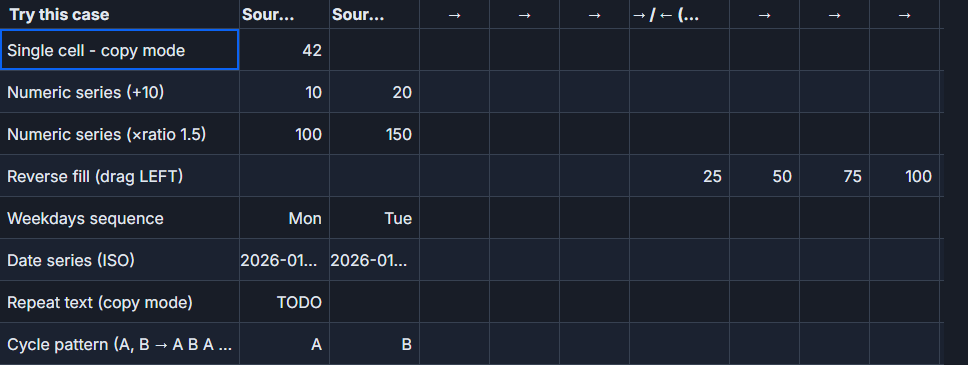 Drag the corner handle to propagate a value down a column.
The architecture in one sentence
Render a handle inside the active cell snippet, track pointermove to determine the fill range, and on pointerup apply the source value to every row in that range through the normal edit commit path.
That last part - through the normal commit path - is the part most quick implementations skip, and it is what causes bugs later.
Setting up the cell snippet
SvGrid accepts a Svelte 5 snippet for cell rendering. The fill handle is a child element rendered only when the cell is active. The handle itself is just a styled <span> positioned at the bottom-right corner via CSS.
<script lang="ts">
  import SvGrid, { type ColumnDef, type SvGridApi } from '@svgrid/grid'

  type Row = { id: number; qty: number; price: number; category: string }

  let rows = $state<Row[]>([
    { id: 1, qty: 10, price: 4.99, category: 'A' },
    { id: 2, qty: 0,  price: 0,    category: '' },
    { id: 3, qty: 0,  price: 0,    category: '' },
    { id: 4, qty: 0,  price: 0,    category: '' },
  ])

  let api = $state<SvGridApi>()
  let activeCell = $state<{ row: number; col: string } | null>(null)
  let fillFrom = $state<{ row: number; col: string; value: unknown } | null>(null)
  let fillTo   = $state<number | null>(null)
</script>

{#snippet fillCell(p: { row: Row; rowIndex: number; field: string; value: unknown })}
  {@const isActive = activeCell?.row === p.rowIndex && activeCell?.col === p.field}
  {@const isFillTarget =
    fillFrom && fillTo !== null &&
    fillFrom.col === p.field &&
    p.rowIndex > fillFrom.row &&
    p.rowIndex <= fillTo}
  <span
    class="sg-cell-inner"
    class:fill-target={isFillTarget}
    onpointerdown={() => { activeCell = { row: p.rowIndex, col: p.field } }}
  >
    {p.value}
    {#if isActive}
      <span
        class="fill-handle"
        onpointerdown={(e) => startFill(e, p.rowIndex, p.field, p.value)}
      ></span>
    {/if}
  </span>
{/snippet}

<SvGrid
  data={rows}
  columns={columns}
  editable
  enableCellSelection
  onApiReady={(a) => { api = a }}
/>
The fill-target class lets you highlight the fill range visually as the user drags - a blue overlay on each candidate cell. The active cell check ensures only the selected cell shows the handle, not every cell in the column.
Tracking the drag
Pointer capture keeps the drag smooth even if the cursor leaves the grid area. The key calculation is rowIndexAt(clientY): translate a Y coordinate into a row index by querying the grid's row elements or using the virtualizer's scroll offset.
let rowHeightPx = 36 // match your rowHeight prop

function rowIndexAt(clientY: number): number {
  const gridEl = document.querySelector('.sv-grid-body') as HTMLElement
  if (!gridEl) return 0
  const rect = gridEl.getBoundingClientRect()
  const scrollTop = gridEl.scrollTop
  const relY = clientY - rect.top + scrollTop
  return Math.max(0, Math.min(rows.length - 1, Math.floor(relY / rowHeightPx)))
}

function startFill(
  e: PointerEvent,
  fromRow: number,
  fromCol: string,
  value: unknown
) {
  e.preventDefault()
  e.stopPropagation()
  ;(e.target as Element).setPointerCapture(e.pointerId)

  fillFrom = { row: fromRow, col: fromCol, value }
  fillTo = fromRow

  function onMove(ev: PointerEvent) {
    const idx = rowIndexAt(ev.clientY)
    if (idx > fromRow) fillTo = idx
  }

  function onUp() {
    commitFill()
    fillFrom = null
    fillTo = null
    window.removeEventListener('pointermove', onMove)
    window.removeEventListener('pointerup', onUp)
  }

  window.addEventListener('pointermove', onMove)
  window.addEventListener('pointerup', onUp)
}
One detail: only allow downward fills (idx > fromRow). You can add upward fills, but they are rarely needed and complicate the range indicator. Ship the common case first.
Committing the fill
This is where most implementations cut corners. Directly mutating rows[i][field] works, but it bypasses any validation and leaves undo broken. Route the fill through api.applyTransaction instead, which integrates with SvGrid's edit history.
function commitFill() {
  if (!fillFrom || fillTo === null || fillTo <= fillFrom.row) return

  const { row: fromRow, col: field, value: sourceValue } = fillFrom

  // Optional: detect numeric series (1, 2 -> 3, 4, 5...)
  const step = detectStep(field, fromRow)

  const updates: Row[] = []

  for (let r = fromRow + 1; r <= fillTo; r++) {
    const current = rows[r]
    const filled = step !== null
      ? { ...current, [field]: Number(sourceValue) + step * (r - fromRow) }
      : { ...current, [field]: sourceValue }
    updates.push(filled)
  }

  // applyTransaction keeps undo/redo working
  api?.applyTransaction({ update: updates })
}

function detectStep(field: string, fromRow: number): number | null {
  // Require at least two rows above the drag start to detect a pattern
  if (fromRow < 1) return null
  const prev = rows[fromRow - 1][field as keyof Row]
  const curr = rows[fromRow][field as keyof Row]
  if (typeof prev !== 'number' || typeof curr !== 'number') return null
  const step = curr - prev
  // Only treat as a series if the step is non-zero and reasonably small
  return step !== 0 && Math.abs(step) < 1e6 ? step : null
}
detectStep looks at the two rows immediately above the drag start. If they are both numbers with a consistent difference, the fill extrapolates rather than copying. Dates can be handled similarly by converting to timestamps, incrementing by step milliseconds, and converting back.
The CSS
Keep it minimal - a small square that appears on hover of the active cell and changes the cursor to a crosshair during drag:
.sg-cell-inner {
  position: relative;
  display: block;
  width: 100%;
  height: 100%;
  padding: 0 var(--sg-cell-px);
  line-height: var(--sg-cell-height, 36px);
}

.fill-handle {
  position: absolute;
  right: -3px;
  bottom: -3px;
  width: 7px;
  height: 7px;
  background: var(--sg-accent, #3b82f6);
  border: 1px solid #fff;
  border-radius: 1px;
  cursor: crosshair;
  z-index: 10;
}

.fill-target {
  background: color-mix(in srgb, var(--sg-accent, #3b82f6) 15%, transparent);
  outline: 1px solid var(--sg-accent, #3b82f6);
  outline-offset: -1px;
}
Using --sg-accent means the handle color will match any theme the user applies to the grid. If the user customises --sg-accent to their brand color, the fill handle follows automatically.
Column definition wiring
Attach the snippet to whichever columns should be fillable. Non-fillable columns - row numbers, action buttons - should not show the handle:
const columns: ColumnDef[] = [
  { id: 'id',       field: 'id',       header: '#',        width: 60,  editable: false },
  { id: 'qty',      field: 'qty',      header: 'Qty',      width: 100, editable: true, type: 'number', cell: fillCell },
  { id: 'price',    field: 'price',    header: 'Price',    width: 120, editable: true, type: 'number', cell: fillCell },
  { id: 'category', field: 'category', header: 'Category', width: 160, editable: true, cell: fillCell },
]
The fillCell snippet is the same one for all fillable columns - the field parameter inside it carries the column identity, so one snippet serves all columns.
Where this breaks and what to do about it
Virtualization and row height. The rowIndexAt function above uses a fixed rowHeightPx. If your grid uses variable row heights or the autoRowHeight option, you need a different approach: iterate the rendered row elements and find the one whose bounding rect contains clientY. Slower, but accurate.
Pinned columns. Pinned columns render in a separate DOM container. The fill handle's rowIndexAt call needs to account for which pane the pointer is in. If your fillable columns are all in the scrollable body, this is not an issue.
Read-only rows. If some rows are conditionally read-only, add a guard in commitFill that skips those rows rather than overwriting them.
Touch devices. PointerEvent covers both mouse and touch, but setPointerCapture behaves differently on touch. Test on mobile if your users care about it; the fill handle is fundamentally a mouse interaction and often it is acceptable to leave it mouse-only.
The fill handle is about 80 lines of logic. Most of that complexity lives in commitFill and detectStep - the actual drag tracking is straightforward. Keeping it attached to applyTransaction rather than direct mutation means undo, redo, and any server-sync logic your app has will treat fills the same as any other edit.
Related reading
- Live demo: Excel-style fill handle
- Paste from Excel into a Svelte Data Grid
- An Editable Select / Dropdown Cell in SvGrid
- A Date-Picker Cell Editor in SvGrid
- An Autocomplete Cell Editor in SvGrid
- Spreadsheet-Style Cell Range Selection in SvGrid
Tagged: Inline editing, Selection