Multi-Column Sorting in a Svelte Data Grid
How multi-column sorting works in SvGrid, from click behavior and sort priority to server-side ordering and programmatic control via the API.
Most grids get single-column sorting right. Multi-column sorting is where things fall apart: indicators out of sync, sort priority lost on re-render, server calls that fire twice because the sort state lives in two places. SvGrid avoids that by making you the owner of the sort state and keeping the grid as a pure reflection of it.
Sort state as a controlled array
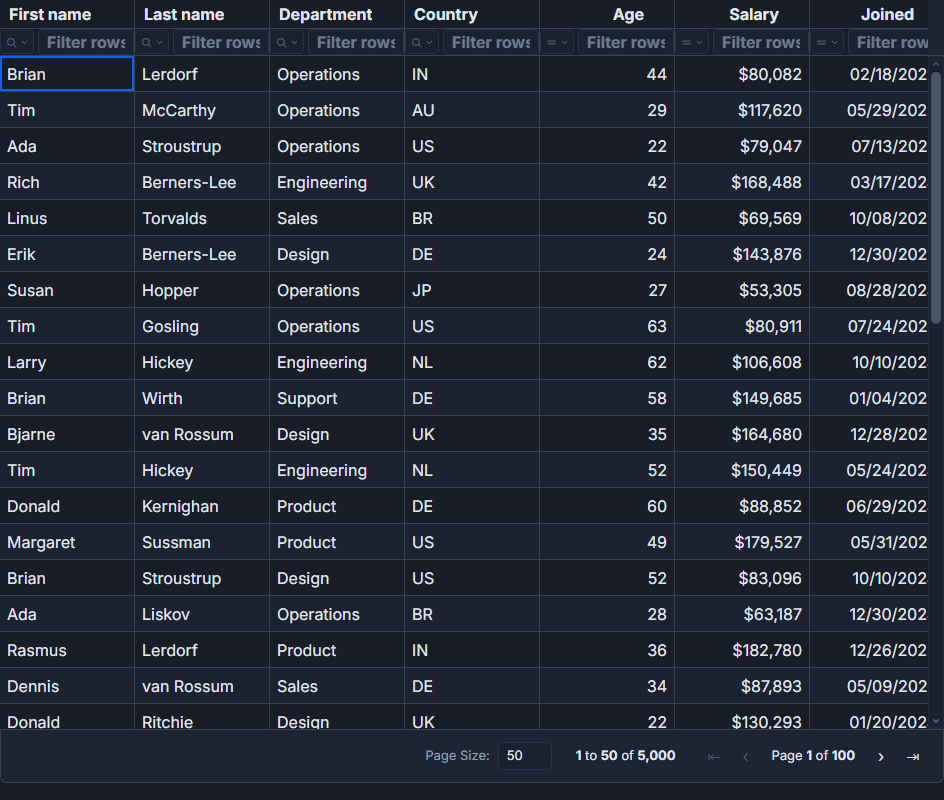
The sort state in SvGrid is an array of { id, desc } clauses. Index 0 is the primary sort, index 1 is the first tie-breaker, and so on. You initialize it, you own it, and the grid renders whatever you hand it. This is the same pattern Svelte 5's $state rune is built for.
<script lang="ts">
  import SvGrid from '@svgrid/grid'
  import { tableFeatures, rowSortingFeature, rowPaginationFeature } from '@svgrid/grid'
  import type { ColumnDef } from '@svgrid/grid'

  type Employee = {
    id: number
    lastName: string
    department: string
    salary: number
    joinedAt: string
  }

  const features = tableFeatures({ rowSortingFeature, rowPaginationFeature })

  const columns: ColumnDef<typeof features, Employee>[] = [
    { id: 'lastName',   field: 'lastName',   header: 'Last name',   width: 160 },
    { id: 'department', field: 'department', header: 'Department',  width: 160 },
    {
      id: 'salary',
      field: 'salary',
      header: 'Salary',
      width: 120,
      type: 'number',
      format: { type: 'currency', currency: 'USD', options: { maximumFractionDigits: 0 } },
    },
    {
      id: 'joinedAt',
      field: 'joinedAt',
      header: 'Joined',
      width: 120,
      type: 'date',
      format: { type: 'date', pattern: 'y-m-d' },
    },
  ]

  const rows: Employee[] = $state(loadEmployees())

  // Default: lastName ascending, then department ascending.
  // Array order is sort priority.
  let sorting = $state([
    { id: 'lastName',   desc: false },
    { id: 'department', desc: false },
  ])
</script>

<SvGrid
  data={rows}
  {columns}
  {features}
  {sorting}
  onSortingChange={(next) => { sorting = next }}
/>
Click a header: ascending. Click again: descending. Click a third time: that column is removed from the sort. Hold Shift and click a second column to append a tie-breaker. The onSortingChange callback fires each time and gives you the full updated array. You write it back into sorting, and the header arrows reflect the new state on the next render.
If you never feed sorting back as a prop, external updates (a "Reset sort" button, a URL-driven initial state) will not move the arrows. The grid is controlled: what you pass in is what it shows.
Why column type matters for sort correctness
The internal sort pipeline selects a comparator based on the column's type field. A column declared type: 'number' uses a numeric comparator. Without that declaration, SvGrid falls back to locale string comparison, and "9000" sorts after "10000" because "9" > "1" lexicographically.
The same issue surfaces with formatting. This breaks numeric sort order:
// Do NOT do this for sortable columns
{ id: 'salary', field: 'salary', accessor: (row) => `$${row.salary.toLocaleString()}` }
When you use an accessor that returns a formatted string, that string is what the comparator receives. The sort runs on "$85,000" rather than 85000. Use format: { type: 'currency', ... } instead. The format transform runs at render time, after sorting, so the raw numeric value stays intact through the comparison.
Date columns have the same requirement. Declare type: 'date' and keep the raw ISO string in your data. Format it only for display.
Capping sort columns and surfacing priority
Multi-sort has no enforced limit by default. Users can Shift-click every column. That is rarely what you want for a server-side grid where the ORDER BY clause has practical limits, and it is confusing for users who cannot tell which column is primary.
Two things help: cap the array in onSortingChange, and display the sort priority visibly. The grid renders a small numeric badge on each sorted column header showing its position in the priority list. If your design needs more - URL sync, an explicit sort summary, a reset button - read from the same sorting array:
<script lang="ts">
  import SvGrid from '@svgrid/grid'
  import { tableFeatures, rowSortingFeature } from '@svgrid/grid'
  import type { ColumnDef } from '@svgrid/grid'

  // ... features and columns defined elsewhere

  let sorting = $state([{ id: 'lastName', desc: false }])

  function handleSortChange(next: typeof sorting) {
    // Cap at 3 sort columns - practical limit for most backends
    sorting = next.slice(0, 3)
  }

  function resetSort() {
    sorting = []
  }
</script>

{#if sorting.length > 0}
  <div class="sort-summary">
    Sorted by:
    {#each sorting as clause, i}
      <span class="clause">{i + 1}. {clause.id} {clause.desc ? '↓' : '↑'}</span>
    {/each}
    <button onclick={resetSort}>Clear</button>
  </div>
{/if}

<SvGrid
  data={rows}
  {columns}
  {features}
  {sorting}
  onSortingChange={handleSortChange}
/>

<style>
  .sort-summary {
    display: flex;
    gap: 8px;
    align-items: center;
    font-size: 13px;
    padding: 6px 0;
    color: #374151;
  }
  .clause {
    background: #eff6ff;
    color: #1d4ed8;
    padding: 2px 8px;
    border-radius: 4px;
    font-family: monospace;
    font-size: 12px;
  }
</style>
The resetSort function sets sorting = [], which immediately clears the header arrows and the summary row. No API call needed - reactivity handles it.
Driving server-side ordering from the same UI
Server-side sorting uses the identical prop interface. The difference is that you fetch ordered data in onSortingChange rather than letting the grid reorder rows itself. Update sorting first so the arrows reflect the new state immediately, then fire the request.
<script lang="ts">
  import SvGrid from '@svgrid/grid'
  import { tableFeatures, rowSortingFeature, rowPaginationFeature } from '@svgrid/grid'
  import type { ColumnDef } from '@svgrid/grid'

  // ... features and columns defined elsewhere

  let sorting = $state<Array<{ id: string; desc: boolean }>>([])
  let rows = $state<Employee[]>([])
  let loading = $state(false)

  async function handleSortChange(next: typeof sorting) {
    // Cap and update immediately so arrows are responsive
    sorting = next.slice(0, 3)
    loading = true

    try {
      const orderParam = sorting
        .map((c) => `${c.id}:${c.desc ? 'desc' : 'asc'}`)
        .join(',')

      const res = await fetch(`/api/employees?order=${orderParam}&limit=200`)
      const json = await res.json()
      rows = json.data
    } finally {
      loading = false
    }
  }

  // Initial load with default sort
  handleSortChange([{ id: 'lastName', desc: false }])
</script>

{#if loading}
  <div class="loading-bar" />
{/if}

<SvGrid
  data={rows}
  {columns}
  {features}
  {sorting}
  onSortingChange={handleSortChange}
/>
The grid never reorders rows on its own here because the data you pass back is already sorted by the server. The controlled state pattern means there is only one source of truth: your sorting variable. The header UI, the URL query string, and the server call all read from the same place.
Programmatic control via the API
Sometimes the sort needs to change from outside the grid - a "Sort by salary" button in a toolbar, a preset applied from a saved view, or a keyboard shortcut. The onApiReady callback gives you an API reference for that.
<script lang="ts">
  import SvGrid from '@svgrid/grid'
  import type { SvGridApi } from '@svgrid/grid'

  let api: SvGridApi | undefined

  function applyPreset(preset: 'salary' | 'recent' | 'alpha') {
    if (!api) return
    const presets = {
      salary:  [{ id: 'salary',   desc: true  }],
      recent:  [{ id: 'joinedAt', desc: true  }],
      alpha:   [{ id: 'lastName', desc: false }, { id: 'firstName', desc: false }],
    }
    api.setSort(presets[preset])
  }
</script>

<div class="toolbar">
  <button onclick={() => applyPreset('salary')}>Highest paid</button>
  <button onclick={() => applyPreset('recent')}>Newest hires</button>
  <button onclick={() => applyPreset('alpha')}>Alphabetical</button>
</div>

<SvGrid
  data={rows}
  {columns}
  {features}
  {sorting}
  onSortingChange={(next) => { sorting = next }}
  onApiReady={(a) => { api = a }}
/>
api.setSort() updates the sort state, fires onSortingChange, and the header arrows follow. You can also call api.clearSort() to remove all clauses, or read the current state with api.getState() if you need to serialize it to localStorage or a URL param.
Default sort on hidden columns
One thing that does catch people: if you initialize sorting with a clause for a column that has visible: false, the rows are ordered but there is no visible arrow. Users see unexplained row order and assume the table is broken. Either limit default sort to visible columns, or surface a sort summary label (the sort-summary div above works well for this) so the ordering is never a mystery.