Prompts That Build a Svelte Data Grid (Claude & Cursor)
Concrete prompts for Claude and Cursor that produce working SvGrid code - plus the MCP server setup that stops AI assistants from inventing props that don't exist.
The fastest way to waste an hour with an AI assistant is to ask it to "add a data grid to my Svelte app" without any grounding. You get code that compiles on the first try, ships non-existent props, and breaks the moment virtualization kicks in. Ninety seconds of setup changes this completely.
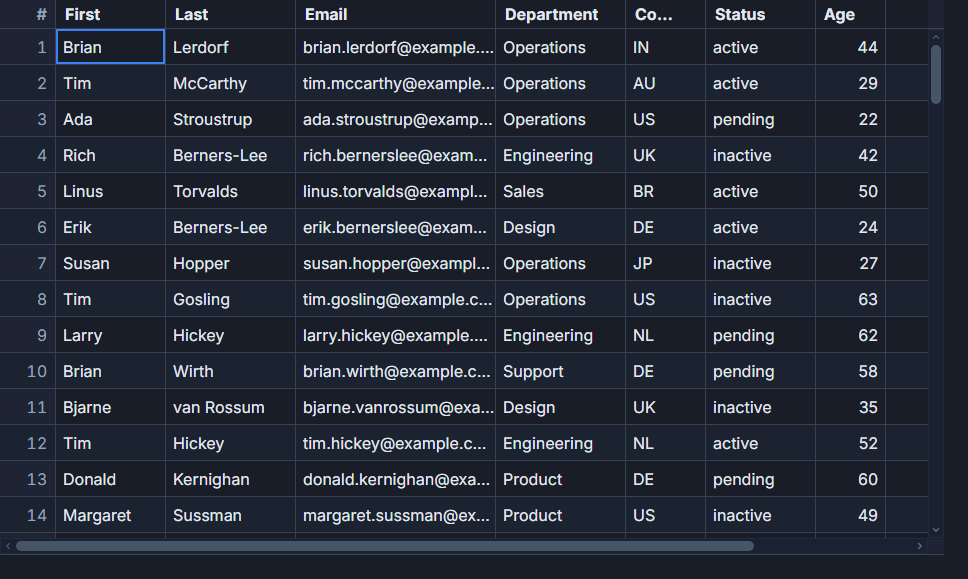 A natural-language filter bar in SvGrid.
One setup step that changes everything
The SvGrid MCP server gives Claude or Cursor a live reference to the actual API surface. Instead of synthesizing props from training data, the assistant calls the server and resolves the real type signatures.
Add this to your Claude Desktop or Cursor MCP config:
{
  "mcpServers": {
    "sv-grid": {
      "command": "npx",
      "args": ["@svgrid/mcp"]
    }
  }
}
After that, the prompts below produce code that imports from @svgrid/grid and uses props that actually exist. The MCP server deep-dive covers what the server exposes and how it resolves ambiguous queries.
From a type to a working grid
This is the most common starting point. You have a TypeScript type and want a grid with appropriate columns, sorting, and a filter UI.
Prompt:
Here is my
Orderinterface. Build a Svelte 5 component using@svgrid/grid. I need columns forid,customer(text),total(USD currency with two decimal places),status(badge - active/pending/cancelled), andorderDate(short date format). Enable column sorting, show a filter row below the headers, and enable Excel-style filter menus on each column. UseonApiReadyto expose the grid API on the component.
What you get back should look roughly like this:
<script lang="ts">
  import SvGrid from '@svgrid/grid'
  import type { ColumnDef, SvGridApi } from '@svgrid/grid'
  import type { Order } from './types'

  let { data }: { data: Order[] } = $props()
  let api = $state<SvGridApi | null>(null)

  const columns: ColumnDef[] = [
    { id: 'id', field: 'id', header: 'ID', width: 80 },
    { id: 'customer', field: 'customer', header: 'Customer', width: 200 },
    {
      id: 'total',
      field: 'total',
      header: 'Total',
      width: 120,
      type: 'number',
      format: { type: 'currency', currency: 'USD', decimals: 2 },
    },
    {
      id: 'status',
      field: 'status',
      header: 'Status',
      width: 120,
      cell: statusCell,
    },
    {
      id: 'orderDate',
      field: 'orderDate',
      header: 'Date',
      width: 110,
      type: 'date',
      format: { type: 'date', pattern: 'MMM d, yyyy' },
    },
  ]
</script>

{#snippet statusCell({ value })}
  <span class="badge badge-{value}">{value}</span>
{/snippet}

<SvGrid
  {data}
  {columns}
  sortable
  filterable
  showFilterRow={true}
  onApiReady={(a) => { api = a }}
/>
If the assistant produces format: 'currency' (a string) instead of the object form, correct it. The object form is what keeps sorting and filtering on the raw numeric value rather than the display string.
Editing with validation
Inline editing is where most assistants stumble. The instinct is to mutate the row object in place, which breaks SvGrid's change tracking. The correct pattern routes through onCellValueChange.
Prompt:
Make the
quantitycolumn editable with a number input. InonCellValueChange, reject any value below 1 or above 9999 by callingparams.revert(). Otherwise, update the row in my localrowsstate usingapplyTransaction. Preserve undo/redo support.
The key phrase here is "do not mutate the row directly" - you can add that explicitly if the assistant tends to reach for row.quantity = newValue. The expected output routes every accepted change through the API:
<script lang="ts">
  import SvGrid from '@svgrid/grid'
  import type { SvGridApi } from '@svgrid/grid'

  let rows = $state(initialData)
  let api = $state<SvGridApi | null>(null)

  function onCellValueChange(params) {
    const { row, column, newValue, revert } = params
    if (column.id === 'quantity') {
      const n = Number(newValue)
      if (isNaN(n) || n < 1 || n > 9999) {
        revert()
        return
      }
      api?.applyTransaction({
        update: [{ ...row.original, quantity: n }],
      })
    }
  }
</script>

<SvGrid
  data={rows}
  {columns}
  editable
  {onCellValueChange}
  onApiReady={(a) => { api = a }}
/>
Server-side data with debounced filters
For large datasets, you want the server driving pagination, sorting, and filtering - not the client. The prompt needs to be explicit about debouncing, or the assistant generates a grid that fires a request on every keystroke.
Prompt:
Convert this grid to server-side mode using
createServerDataSourcefrom@svgrid/grid. On sort/filter/page change, call myfetchOrdersfunction with the current sort, filters, page index, and page size. Debounce filter changes by 300ms. Show a loading indicator while the fetch is in flight.
<script lang="ts">
  import SvGrid, { createServerDataSource } from '@svgrid/grid'

  let loading = $state(false)
  let filterTimer: ReturnType<typeof setTimeout>

  const ds = createServerDataSource({
    fetch: async ({ page, pageSize, sort, filters }) => {
      loading = true
      try {
        const result = await fetchOrders({ page, pageSize, sort, filters })
        return { rows: result.data, total: result.total }
      } finally {
        loading = false
      }
    },
    debounce: 300,
  })
</script>

<div class="grid-wrap" class:loading>
  <SvGrid
    data={ds}
    {columns}
    pageable
    sortable
    filterable
    showFilterRow={true}
  />
</div>
createServerDataSource wires up the debounce internally when you pass debounce: 300, so you do not need to manage it yourself. The assistant may not know this without the MCP server - it will sometimes generate manual debounce logic around the data prop, which is the wrong pattern.
Grouping with aggregated totals
Grouping prompts tend to produce correct structure but wrong aggregation. Be specific about which column aggregates and how.
Prompt:
Group rows by
region. Show arevenuetotal for each group, formatted as USD currency. Expand all groups by default.
The column definition that the assistant should produce:
{
  id: 'revenue',
  field: 'revenue',
  header: 'Revenue',
  width: 140,
  type: 'number',
  format: { type: 'currency', currency: 'USD', decimals: 0 },
  aggregation: 'sum',
}
And on the component:
<SvGrid
  {data}
  {columns}
  groupable
  groupBy={['region']}
  onApiReady={(a) => {
    a.expandAllGroups()
  }}
/>
If the assistant puts aggregation logic inside a footer callback instead of the aggregation field, that is a sign it is working from outdated context rather than the live API. The aggregation field on the column definition is the correct path - it keeps the group row value available for sorting and export.
What to check before you paste the output
Even with MCP grounding, scan the generated code for three things:
Currency and date formats - they should be object form { type: 'currency' }, not a string. String formats are a common hallucination from older grid libraries.
Container height - SvGrid's virtualization requires a parent element with a bounded height. If the assistant omits it, add height: 600px (or a flex container with flex: 1) to the wrapper div. A grid in an unbounded container renders every row.
Editing path - edits should go through onCellValueChange and then applyTransaction. Direct mutation of data or row objects breaks the undo stack and may not trigger reactive updates correctly.
Those three checks take about thirty seconds and catch eighty percent of the issues you would otherwise debug by hand.