Building an E-commerce Product Catalog Grid in Svelte
How to build a product catalog admin grid with image cells, inline price and stock edits, category filtering, and bulk updates using SvGrid.
Product catalog management is one of those admin UIs that merchandisers open every morning and use all day. The difference between a grid that feels right and one that creates friction shows up immediately: are prices editable in place? Can you bulk-update a category after a supplier change? Does the stock column turn red before someone has to go look something up?
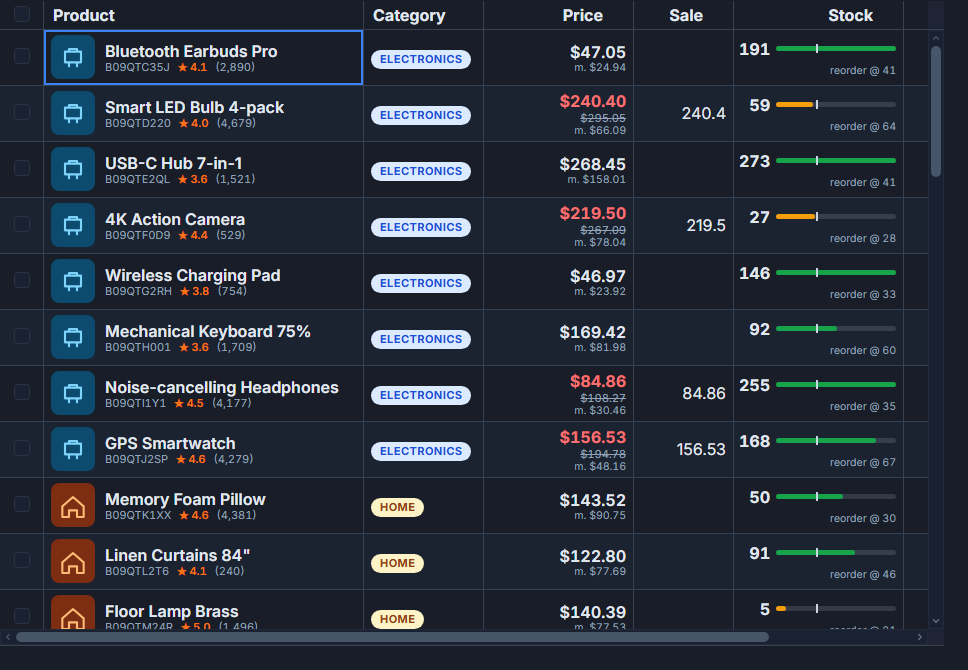
This post builds a real product catalog admin with SvGrid - image cells, inline editing, conditional formatting, and bulk operations - the kind you'd ship to an internal team or a client.
What a catalog grid actually needs
A typical SKU list has five or six columns that matter, and two that need to be interactive on every row:
- A thumbnail + name + SKU composite cell (read-only, usually)
- Price: editable, currency-formatted
- Stock quantity: editable number, with low-stock highlighting
- Category: editable select
- Status: a badge (Published, Draft, Archived)
- An actions column for edit/duplicate/archive
The columns are simple enough. The work is in making price and stock editable without page reloads, showing visual cues for out-of-stock items, and letting merchandisers select 50 products and apply a 10% discount in one click.
Column definitions and custom cells
Start with the column definitions. The product cell uses a Svelte snippet to render a thumbnail alongside the name and SKU. Price and stock get editable: true with appropriate types. Category becomes a select editor.
<script lang="ts">
  import SvGrid from '@svgrid/grid'
  import type { ColumnDef } from '@svgrid/grid'

  type Product = {
    id: number
    sku: string
    name: string
    image: string
    price: number
    stock: number
    category: string
    status: 'published' | 'draft' | 'archived'
  }

  let api: any = $state(null)

  const categories = ['Apparel', 'Electronics', 'Home', 'Beauty', 'Sports']

  const columns: ColumnDef[] = [
    {
      id: 'product',
      header: 'Product',
      width: 240,
      pinned: 'left',
      cell: productCell,
    },
    {
      id: 'price',
      field: 'price',
      header: 'Price',
      width: 110,
      type: 'number',
      editable: true,
      format: { style: 'currency', currency: 'USD' },
    },
    {
      id: 'stock',
      field: 'stock',
      header: 'Stock',
      width: 90,
      type: 'number',
      editable: true,
      conditionalFormat: [
        {
          condition: ({ value }) => value === 0,
          style: { color: '#dc2626', fontWeight: 'bold' },
        },
        {
          condition: ({ value }) => value > 0 && value <= 5,
          style: { color: '#d97706' },
        },
      ],
    },
    {
      id: 'category',
      field: 'category',
      header: 'Category',
      width: 130,
      editable: true,
      editor: { type: 'select', options: categories },
    },
    {
      id: 'status',
      field: 'status',
      header: 'Status',
      width: 110,
      cell: statusCell,
    },
    {
      id: 'actions',
      header: '',
      width: 80,
      pinned: 'right',
      cell: actionsCell,
    },
  ]
</script>

{#snippet productCell({ row })}
  <div class="product-cell">
    <img src={row.original.image} alt={row.original.name} class="thumb" />
    <div class="meta">
      <span class="name">{row.original.name}</span>
      <span class="sku">{row.original.sku}</span>
    </div>
  </div>
{/snippet}

{#snippet statusCell({ value })}
  <span class="badge status-{value}">{value}</span>
{/snippet}

{#snippet actionsCell({ row })}
  <div class="actions">
    <button onclick={() => archive(row.original)}>Archive</button>
  </div>
{/snippet}

<SvGrid
  data={products}
  {columns}
  editable
  sortable
  filterable
  showFilterRow={true}
  showGlobalFilter={true}
  enableCellSelection={true}
  rowHeight={52}
  onApiReady={(a) => (api = a)}
/>
The stock column's conditionalFormat handles two thresholds without any extra logic in cell renderers. Zero stock turns red. Low stock (1-5) turns amber. This runs per cell on render, so large catalogs don't pay a tax for it.
Inline editing with optimistic updates
Catalog edits - especially prices - should feel instant. SvGrid's onCellEdit callback fires after the user confirms a change. Commit to the server there, and revert on failure:
<script lang="ts">
  async function handleCellEdit({ row, column, newValue, oldValue }) {
    const productId = row.original.id
    const field = column.id

    // Optimistically update local state (already reflected in the grid)
    try {
      await fetch(`/api/products/${productId}`, {
        method: 'PATCH',
        headers: { 'Content-Type': 'application/json' },
        body: JSON.stringify({ [field]: newValue }),
      })
    } catch {
      // Revert: push old value back via the api
      api.applyTransaction({
        update: [{ ...row.original, [field]: oldValue }],
      })
    }
  }
</script>

<SvGrid
  data={products}
  {columns}
  editable
  onCellEdit={handleCellEdit}
  onApiReady={(a) => (api = a)}
/>
The grid has built-in undo/redo too. If you want merchandisers to be able to step back through their edits before committing to the server, call api.undo() from a toolbar button instead of reverting on the server round-trip.
Bulk operations on selected rows
Seasonal discounts and category migrations happen in batches. Row selection plus a toolbar makes this straightforward:
<script lang="ts">
  import SvGrid from '@svgrid/grid'

  let api: any = $state(null)
  let discountPct = $state(10)

  function applyDiscount() {
    const selected = api.getSelectedRows()
    if (!selected.length) return

    const updates = selected.map((row) => ({
      ...row,
      price: parseFloat((row.price * (1 - discountPct / 100)).toFixed(2)),
    }))

    api.applyTransaction({ update: updates })

    // Persist to server
    fetch('/api/products/bulk', {
      method: 'PATCH',
      headers: { 'Content-Type': 'application/json' },
      body: JSON.stringify(
        updates.map(({ id, price }) => ({ id, price }))
      ),
    })
  }

  function publishSelected() {
    const selected = api.getSelectedRows()
    const updates = selected.map((row) => ({ ...row, status: 'published' }))
    api.applyTransaction({ update: updates })
    fetch('/api/products/bulk', {
      method: 'PATCH',
      headers: { 'Content-Type': 'application/json' },
      body: JSON.stringify(updates.map(({ id, status }) => ({ id, status }))),
    })
  }
</script>

<div class="toolbar">
  <label>
    Discount %
    <input type="number" bind:value={discountPct} min="1" max="90" />
  </label>
  <button onclick={applyDiscount}>Apply to selected</button>
  <button onclick={publishSelected}>Publish selected</button>
  <button onclick={() => api.selectAllRows()}>Select all</button>
  <button onclick={() => api.clearRowSelection()}>Clear</button>
</div>

<SvGrid
  data={products}
  {columns}
  editable
  sortable
  filterable
  showGlobalFilter={true}
  showFilterRow={true}
  rowHeight={52}
  onApiReady={(a) => (api = a)}
/>
applyTransaction updates only the rows that changed, so the rest of the grid stays in place. No re-render of 5000 rows when you update 50.
Filtering by category, price range, and status
The filter row handles text and select columns automatically. For price range, use the imperative API to set a between filter from a custom range input in the toolbar:
<script lang="ts">
  let minPrice = $state('')
  let maxPrice = $state('')

  function applyPriceFilter() {
    if (minPrice || maxPrice) {
      api.setFilter('price', {
        operator: 'between',
        value: minPrice || '0',
        valueTo: maxPrice || '999999',
      })
    } else {
      api.clearAllFilters()
    }
  }
</script>

<div class="price-range">
  <input placeholder="Min price" bind:value={minPrice} type="number" />
  <input placeholder="Max price" bind:value={maxPrice} type="number" />
  <button onclick={applyPriceFilter}>Filter</button>
</div>
Save frequently-used filter combinations as named views. A "Out of stock" view and a "Drafts" view save the team 10 clicks per session - which adds up.
Scaling to large catalogs
Virtualization is on by default in SvGrid, so a 50,000-row catalog scrolls without issues. For catalogs that size, switch to server-side data so you're only fetching one page at a time:
<script lang="ts">
  import SvGrid, { createServerDataSource } from '@svgrid/grid'

  const ds = createServerDataSource({
    fetch: async ({ page, pageSize, sort, filters }) => {
      const params = new URLSearchParams({
        page: String(page),
        size: String(pageSize),
        ...(sort?.[0] ? { sortField: sort[0].id, sortDir: sort[0].desc ? 'desc' : 'asc' } : {}),
      })

      // Pass active filters
      for (const [field, filter] of Object.entries(filters ?? {})) {
        if (filter.value) params.set(`filter_${field}`, filter.value)
      }

      const res = await fetch(`/api/products?${params}`)
      const json = await res.json()
      return { rows: json.data, total: json.count }
    },
  })
</script>

<SvGrid
  data={ds}
  {columns}
  sortable
  filterable
  pageable
  rowHeight={52}
  onApiReady={(a) => (api = a)}
/>
The thumbnail cells in the product column should use loading="lazy" on the <img> tag. That keeps the initial page load fast even when images are 200x200 thumbnails per row.
Where this breaks down
A few things to think about before shipping:
Image cells with variable-height images break virtualization because SvGrid assumes a fixed row height. Fix this by enforcing a consistent thumbnail size (48x48 or 64x64) via CSS, not by trying to use dynamic row heights.
Editable selects for category work for small category lists. If you have 300 categories, you want an autocomplete component instead - swap the editor config for a custom cell that renders your own combobox.
CSV import is not built into SvGrid itself. The usual pattern is a file input outside the grid that parses the CSV with a library, runs validation, then calls api.applyTransaction({ add: newRows }) to push the rows in.